

Accounts
Managing your account settings and configuration is key to ensuring that your organisation can maximise safeguarding value through Voop.
Account settings
You can change the name of your account and you can add an organisation logo. These changes will be visible to all of the users within the account, when they use the dashboard.
Click details to make changes.
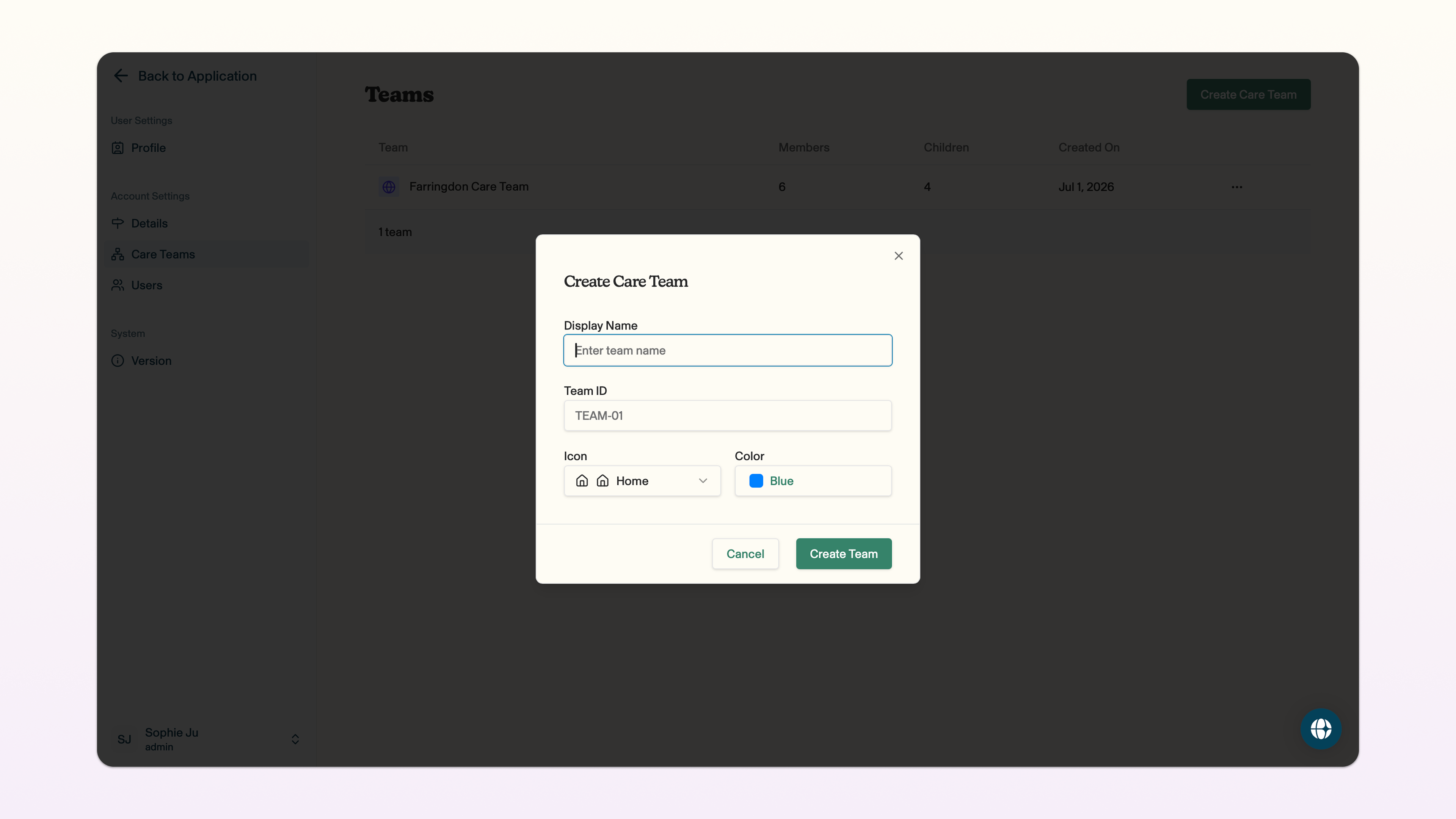
To change the name of the account, type your new account name into the organisation name field.
To add an organisation logo, click on the add organisation logo button and add your image. You can remove an existing organisation logo by clicking remove logo. You can see your organisation logo in the field on the right hand side, and in the top left corner of the screen when you are in the dashboard view and have your sidebar open.
Click save changes so you don't lose your changes!
Don't worry about the account ID field. This is automatically generated when you enter your organisation name and determines the URL link to access your dashboard. You can see the URL link for your dashboard below this box. Save this link so you have easy access to the dashboard going forward.
Phone plan
You can use phone plan to view the details of the plan the child is on.
To navigate to phone plan from the dashboard view, click on the name of the child whose phone plan you want to view in the sidebar on the left -> in the side panel on the right, click Phone Plan.
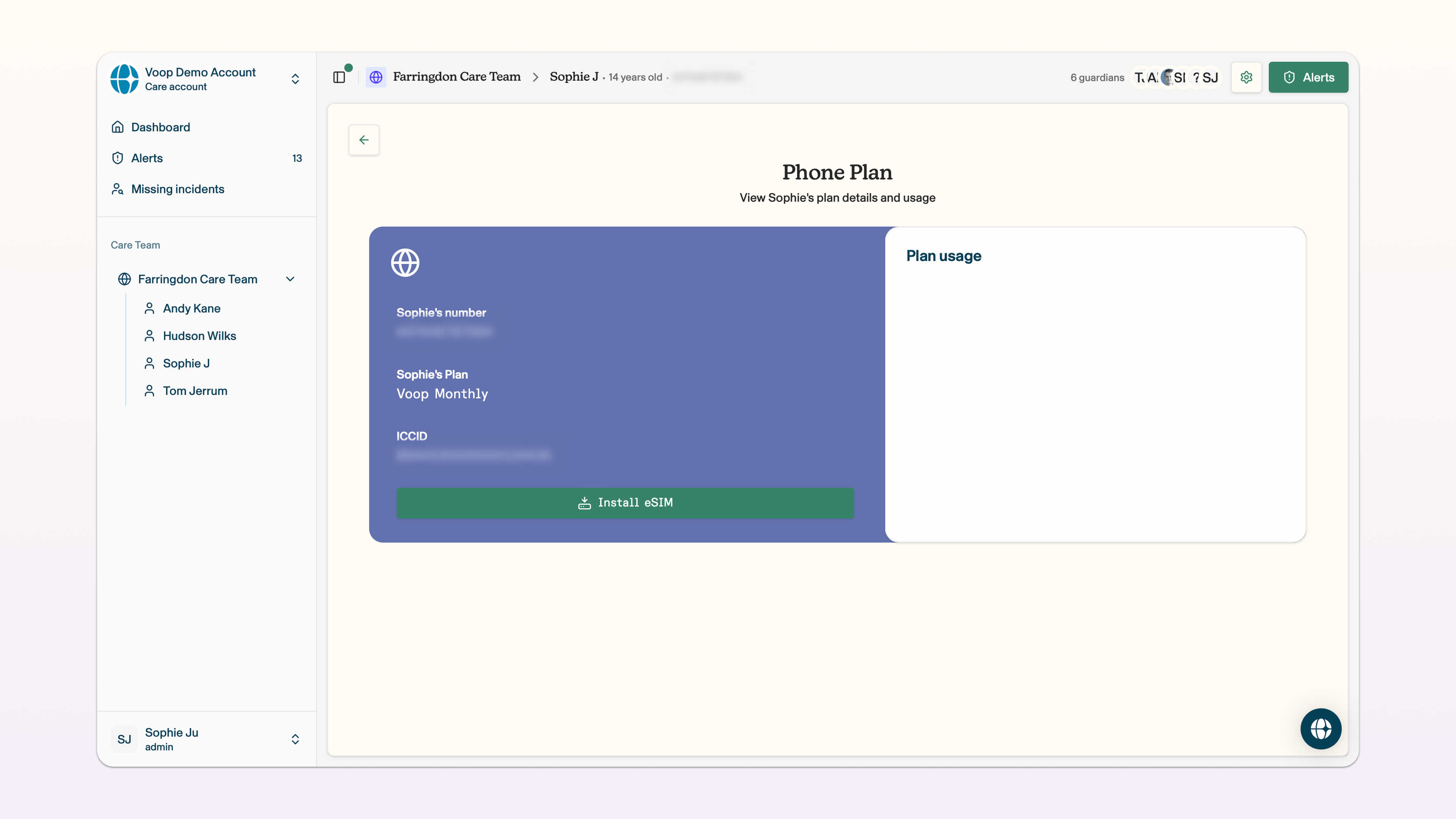
Here you can see the child's phone number, their type of plan and their ICCID (a unique reference that helps us to identify the eSIM they're using).
In the near future, you'll also be able to see the child's use of data, minutes and texts in the plan usage section. We're working on it!
If the installation of the eSIM on the device fails during the onboarding process, you might need to install the eSIM through this page. You're unlikely to need this, so we won't dwell on it here!