

Calling and texting
We're a mobile network, so phone calling and texting is a key feature that we provide for children who use our network.
You can control who a child can call and text message. From the dashboard, an admin, team owner or guardian can decide which phone numbers a child is allowed to call and text message, and which numbers are blocked.
Remember: you must click save changes on the blue bar at the bottom of the screen whenever you make a change to the configuration of a child's smartphone.
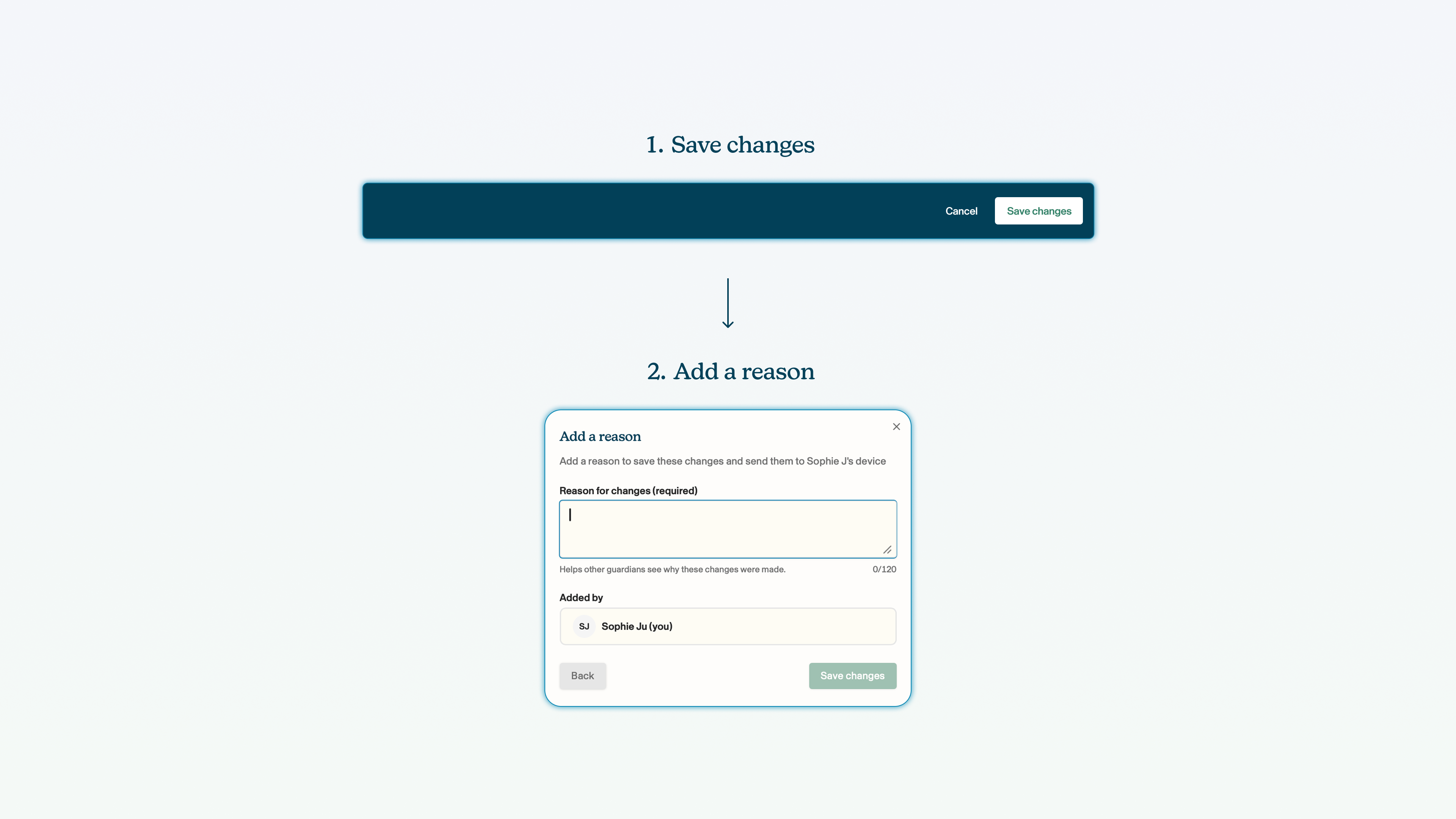
There are two approaches to managing calling and texting:
- Enable or block all phone calls and text messages
- Manage who a child can call and text, provided you have enabled calling and texting
Voop is only able to provide controls on calling and texting within the phone's default, native calling and texting application. We can't control calling or texting over social media and messaging applications (like WhatsApp and Snapchat). If you want to prevent a child from calling or messaging through other applications, you can block these applications in the social media and messaging apps section.
To navigate to the calling page from the dashboard view, click on the team for which you want to change the calling and texting settings for -> click on the child within that team whose settings you want to change -> in the side bar on the right, click device -> calls and texts.
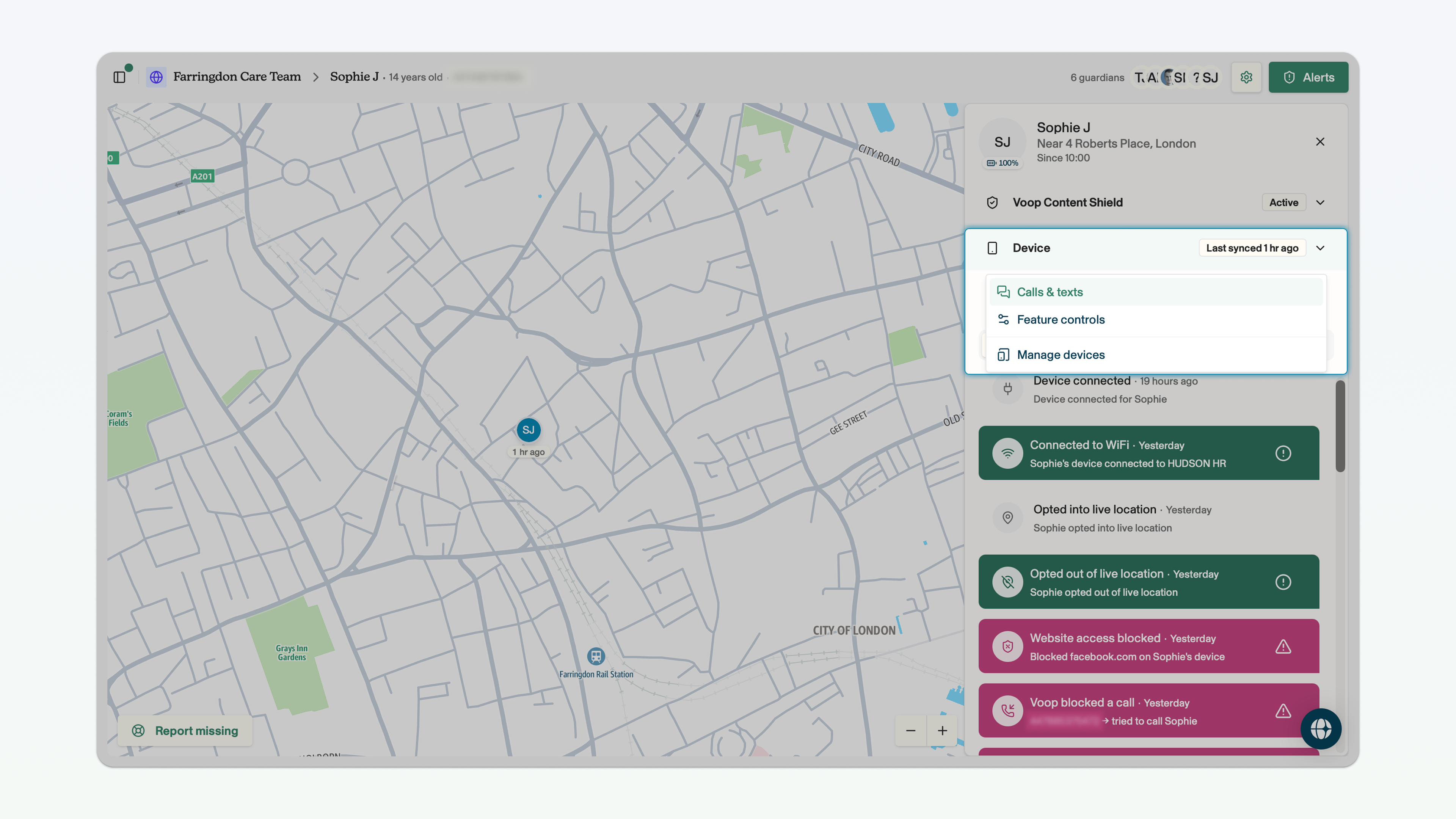
This will open up the page with the calling and texting settings.
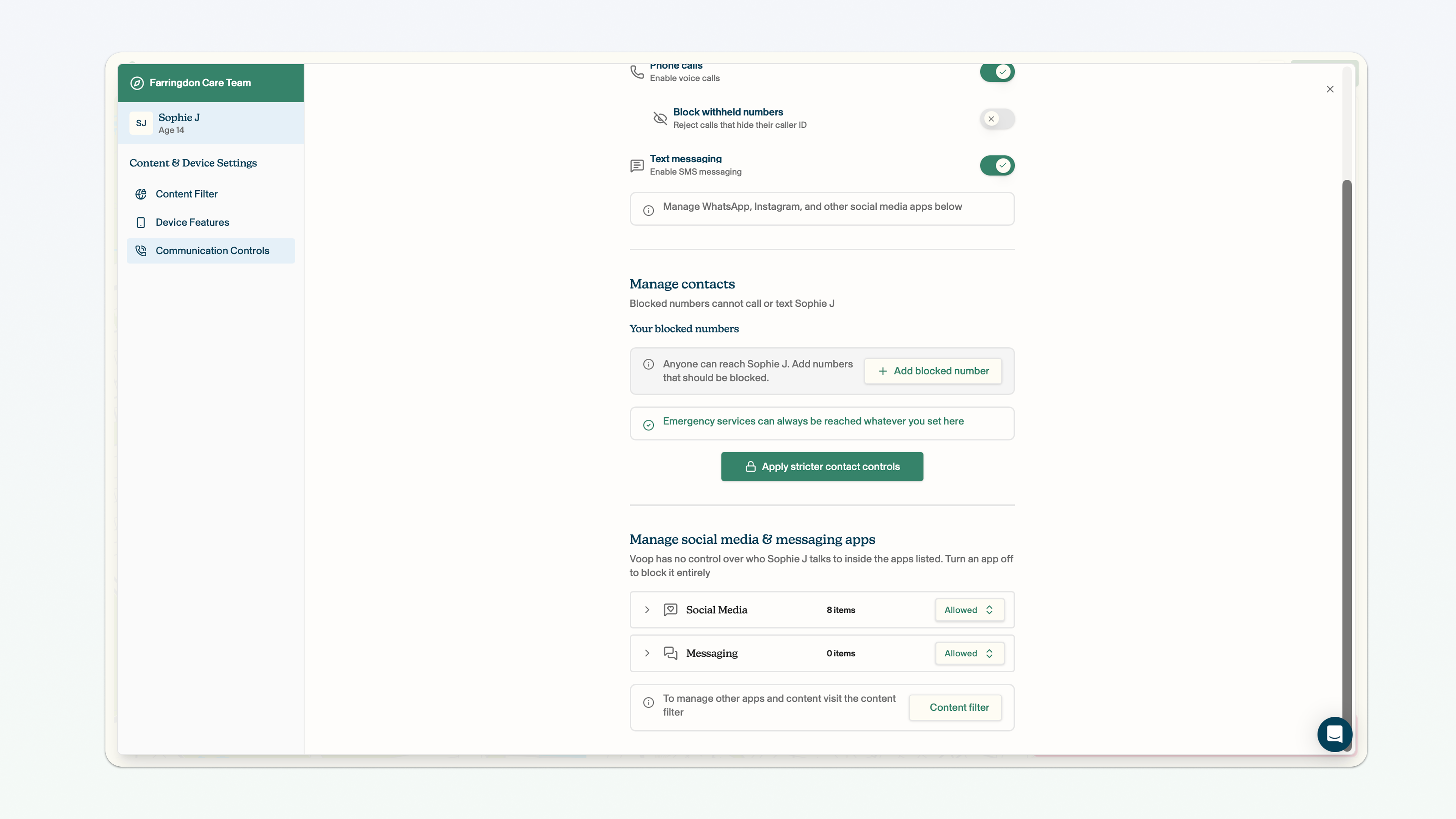
Block phone calls
You can block phone calls that the child attempts to make, as well as any inbound phone calls to the child's phone.
A child will always be able to make calls to emergency numbers such as 999, 112, 101 and 111 - regardless of any changes you apply to calling and texting.
Click the toggle next to the phone calls field. The green tick means phone calls are enabled, the grey cross means phone calls are blocked.
When the child accesses their device's native calling application and attempts to call a phone number, they will see a dialogue box saying 'only emergency calls are allowed' or there will be a 'server error' when they attempt to make a phone call.
If phone calls are blocked, Voop will send an alert to your activity feed whenever the child attempts to make a call or someone attempts to call them.
Block withheld numbers
You can block inbound phone calls from people who withhold their caller ID.
Click the toggle next to the block withheld calls field. The green tick means withheld numbers are enabled to call the child's smartphone, the grey cross means phone calls from withheld numbers are blocked.
If a person with a withheld number attempts to call the child, we will block the call and surface an alert to your dashboard that will say 'anonymous' tried to contact the child.
You can only block withheld numbers if phone calls are enabled. If phone calls are blocked, this will automatically block withheld number calls too.
Block text messaging
You can block text messaging. This will prevent the child from being able to send or receive text messages.
Click the toggle next to the block text messaging field. The green tick means text messaging is enabled, the grey cross means text messaging is blocked.
If the child attempts to send a text message to a number, they will see a 'couldn't send message' error code. They will also be unable to see their existing text message chat history with their contacts (this will reappear when text messaging is unblocked).
Block specific numbers
You can block specific numbers from calling and texting the child.
You can only block specific numbers from calling and texting if either (or both) calling and texting are enabled in the section above. If both are blocked, the manage contacts section will not appear.
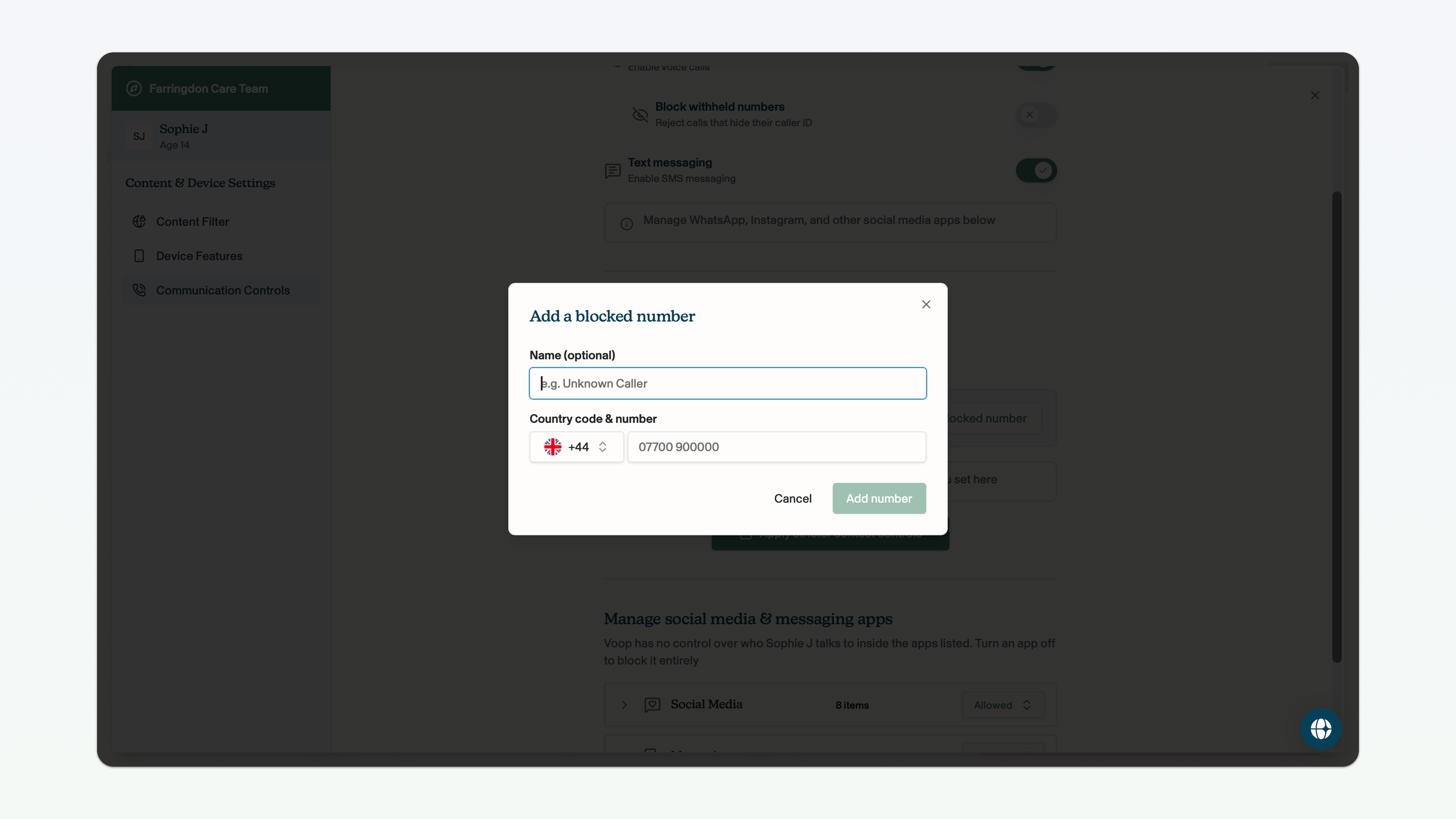
Click add blocked number. Enter the contact name for the blocked number (this is optional), the country code and the phone number. Click add number.
You can edit a blocked number by clicking the pencil icon next to the blocked number. You can remove a blocked number by clicking the cross next to the blocked number.
If a phone number is blocked, but a call or text is attempted between that phone number and the child's device, Voop will send an alert to your activity feed. The child will also be unable to see their existing text message chat history with their contacts (this will reappear when text messaging is unblocked).
There is no limit on the number of phone numbers you can block.
Apply stricter contact controls
You can block all phone numbers from calling and texting, aside from specific phone numbers that you choose to approve. This provides you with more complete control over who the child can call and text message. We refer to this as 'applying stricter contact controls'.
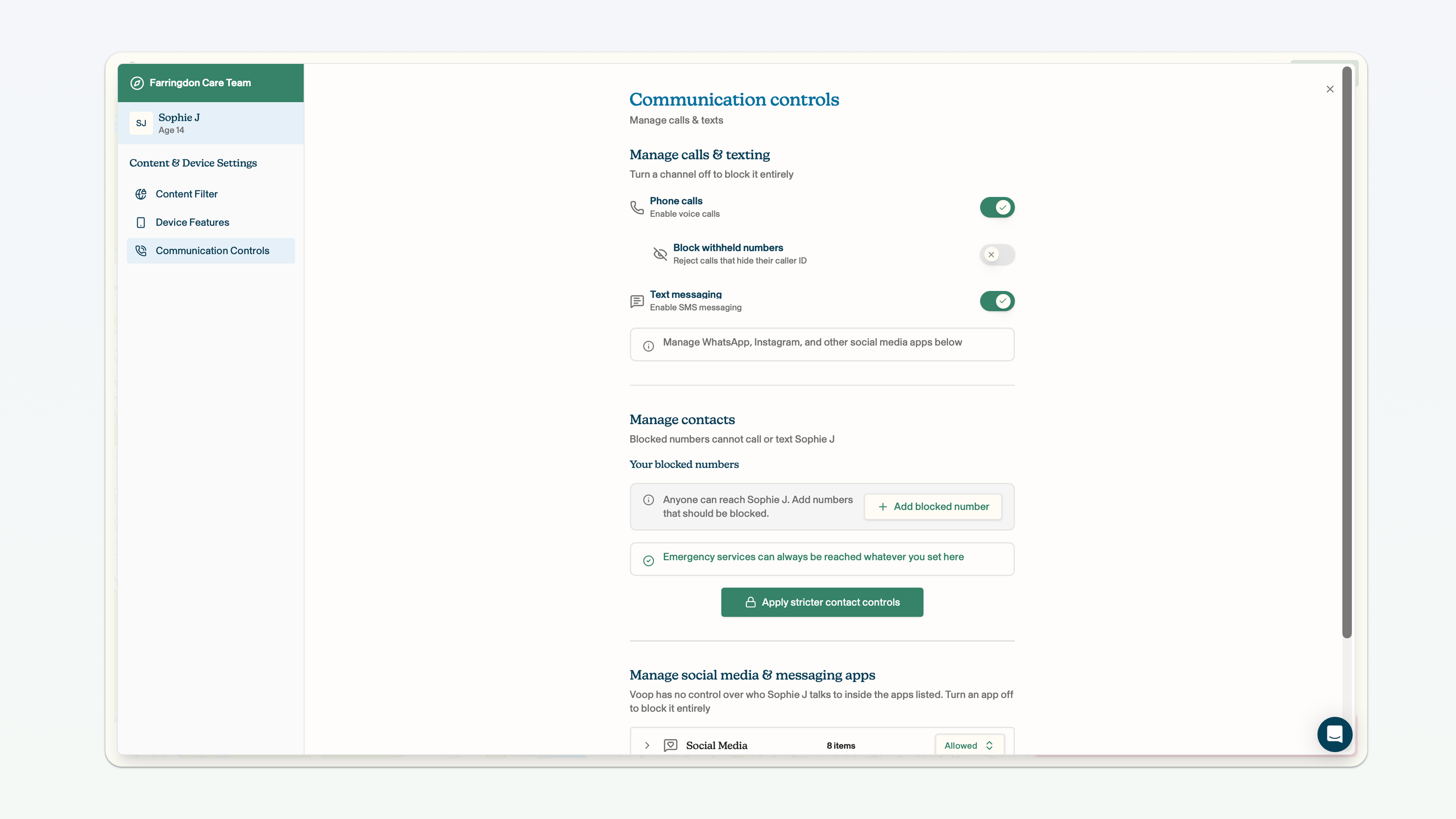
Click apply stricter contact controls. Click turn on stricter controls. Click add allowed number and enter the name and number for the contact you want the child to be able to call and text message.
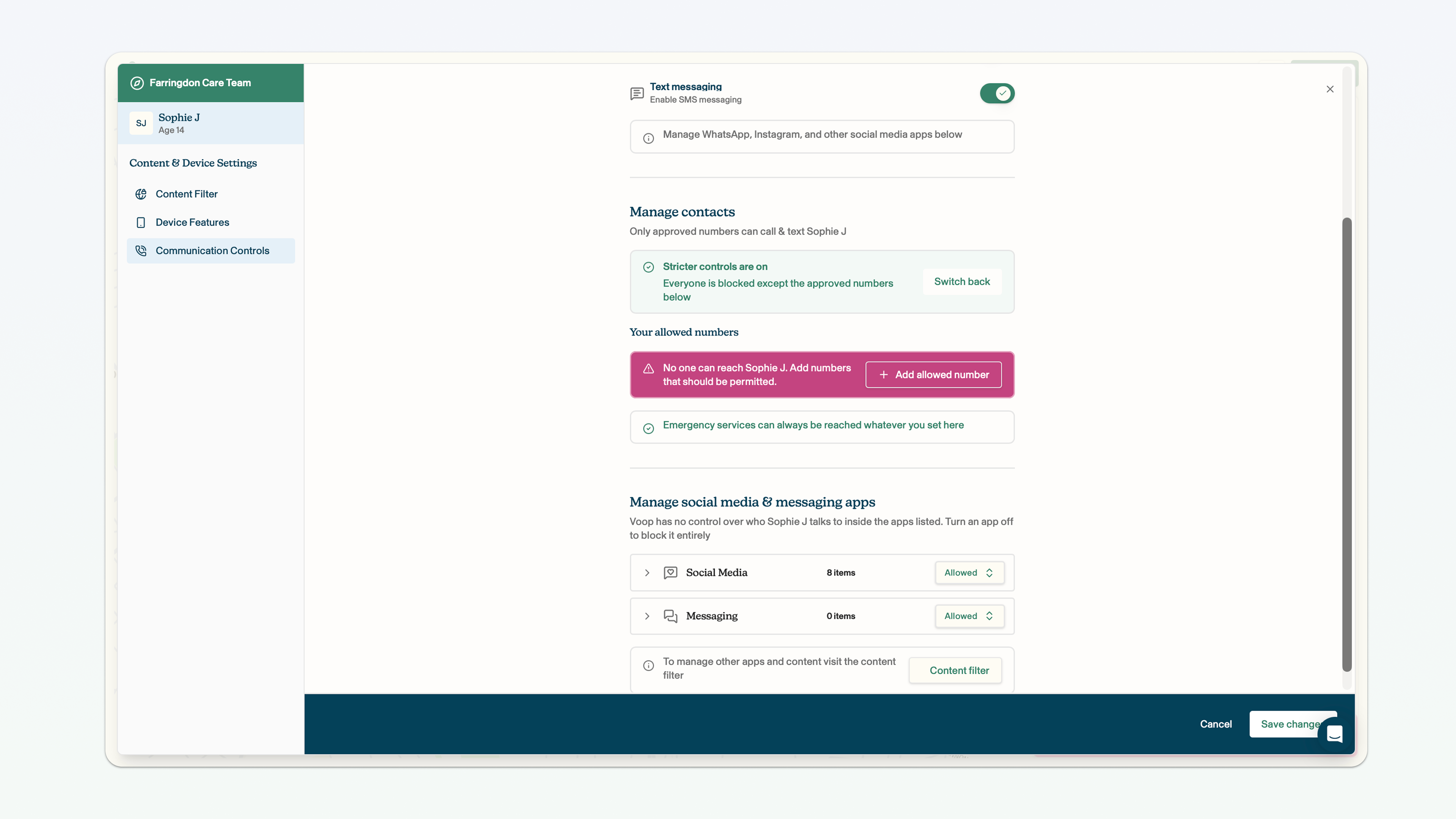
There is no limit to how many numbers you can add to the allowed list. You can edit the name or number by clicking the pencil icon. You can remove the allowed number by clicking the cross icon, which will block the number from calling and text messaging the child.