

Screen time
Set the days and times a child's phone winds down, and let Voop apply it automatically.
Overview
A schedule is an automatic change to the controls you already set, applied on the days and times you choose and lifted again when the window ends. The first schedule available in Voop is Bedtime, a whole-device wind-down that settles a child's phone overnight so they can sleep, then brings it back in the morning.
While Bedtime is active the device is wound down. Apps, web access, calls and messages are blocked, aside from a few exceptions you choose.
Emergency access is never blocked
A child can always reach emergency calls and the alarm while Bedtime is running. Emergency access is never blocked by a schedule.
Finding the Bedtime schedule
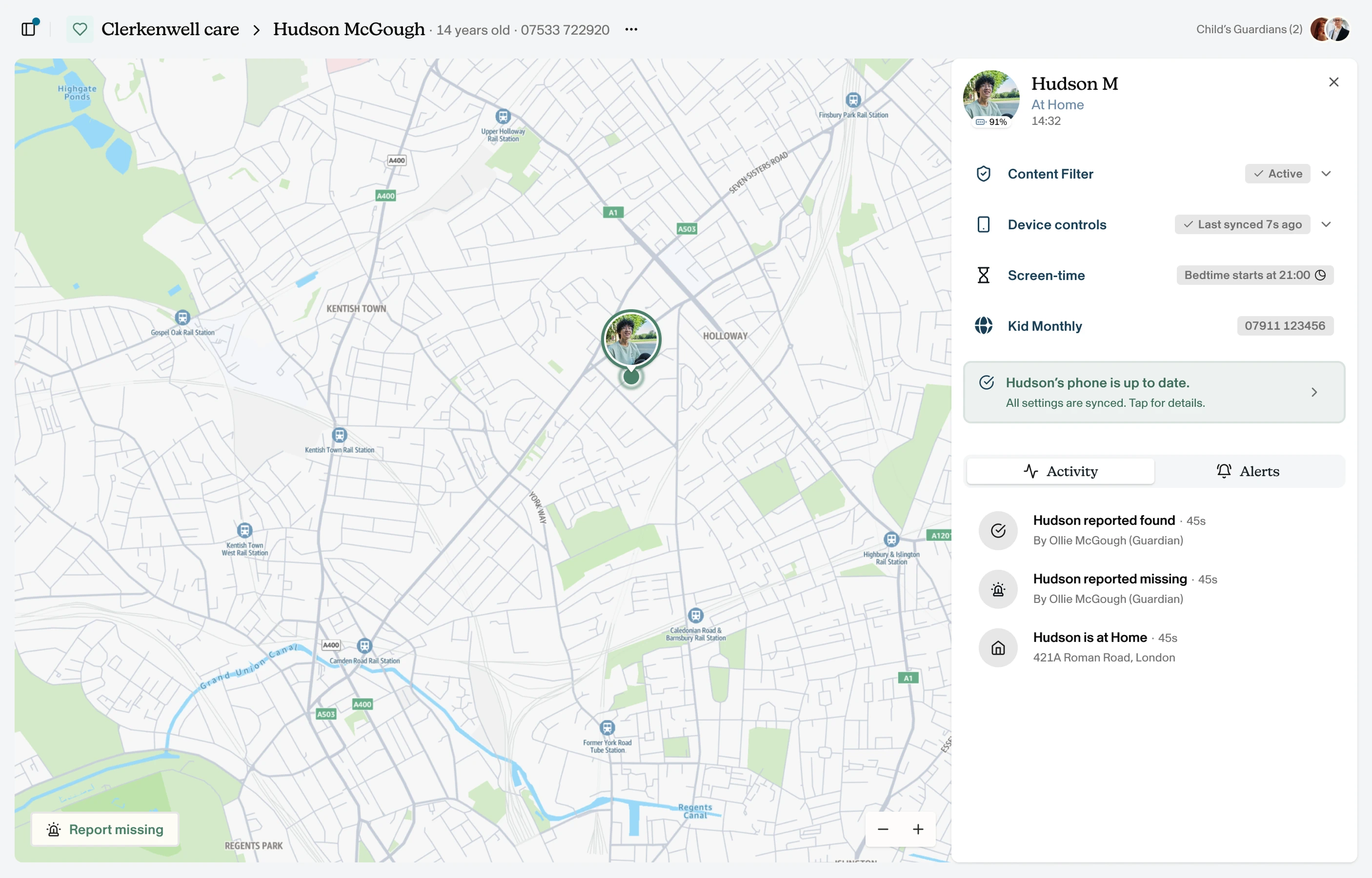
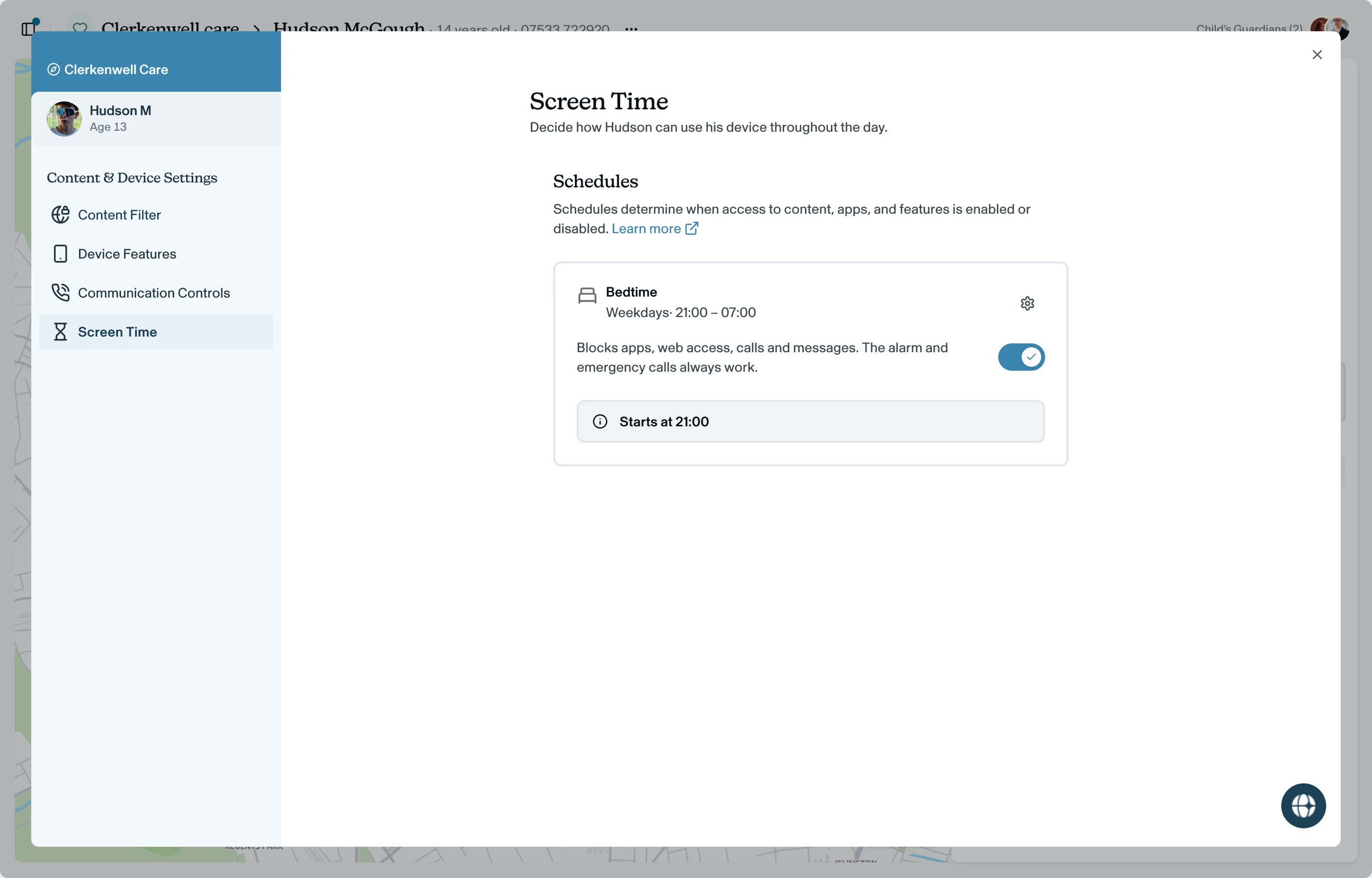
From the child dashboard, click Screen-time on the right-hand side panel. You'll be navigated to the Screen Time section in the Content & Device Settings modal.
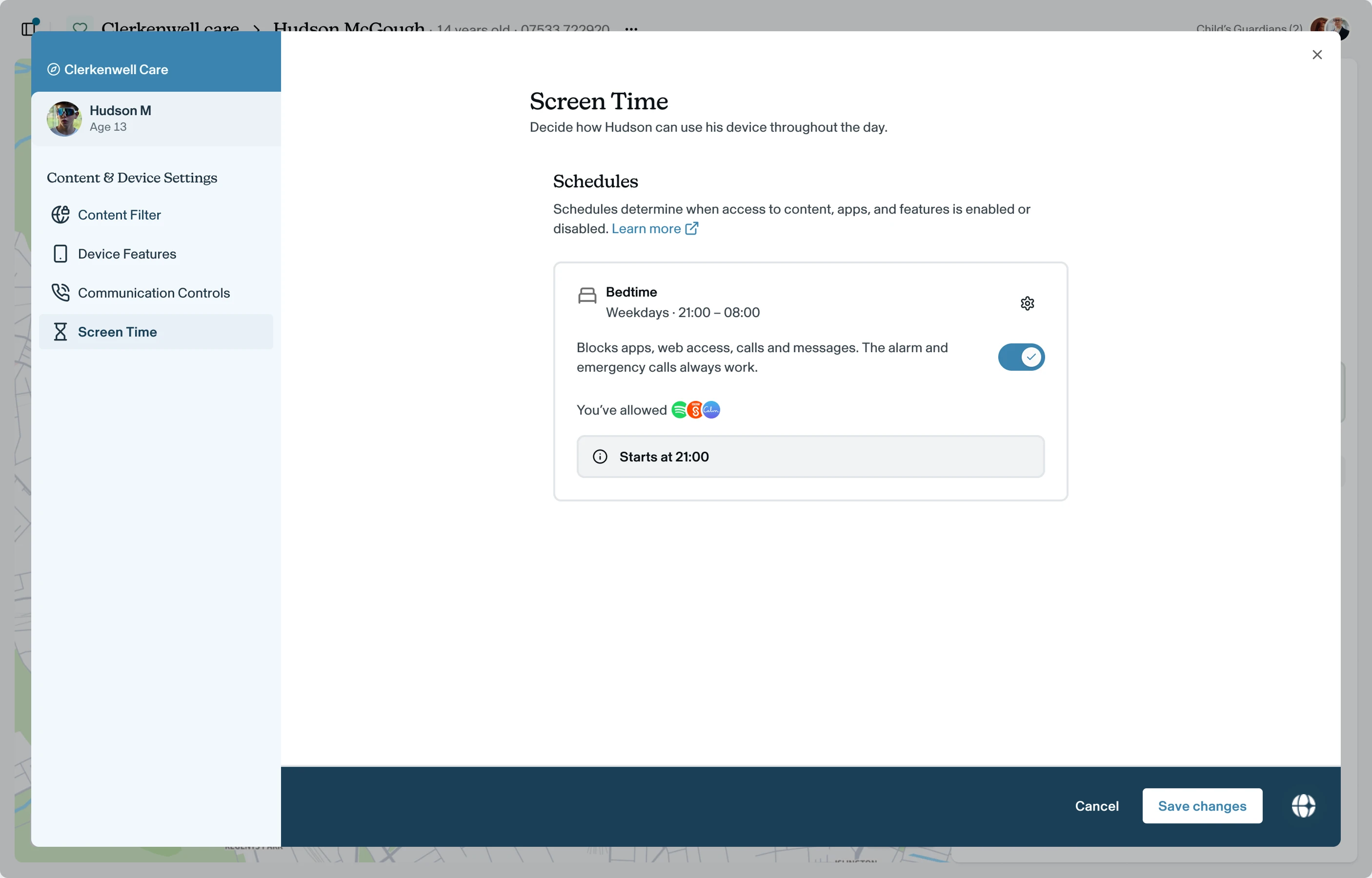
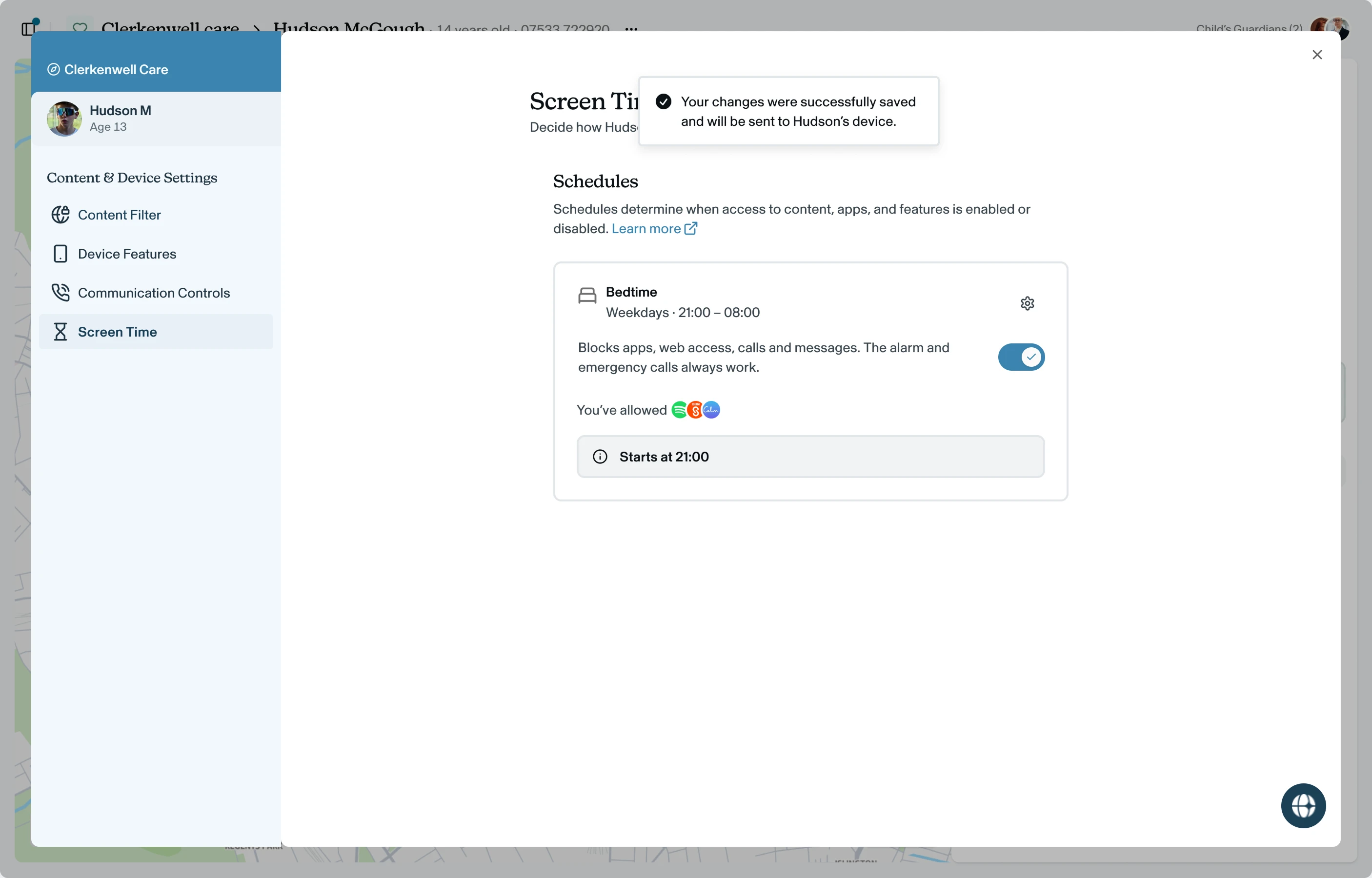
The page opens on the Schedules section, where Bedtime appears as a card showing its days and times (for example, Weekdays · 21:00 – 07:00), a settings icon to edit it, and a toggle to switch it on or off.
What happens during Bedtime
While the window is active:
- Blocked: apps, web access, calls and messages.
- Allowed: the alarm and emergency calls, plus any apps you've added as exceptions.
When the window ends, the phone returns to its normal settings automatically.
If an app or website isn't blocked
Voop blocks apps and sites individually rather than shutting the whole phone down. That's deliberate — blocking everything outright can leave a phone unusable, and it needs to stay able to make an emergency call. Occasionally that means something hasn't been blocked yet: an app that opens and still works normally, or a website that still loads. If you spot one, let us know and we'll get it blocked.
Edit the schedule
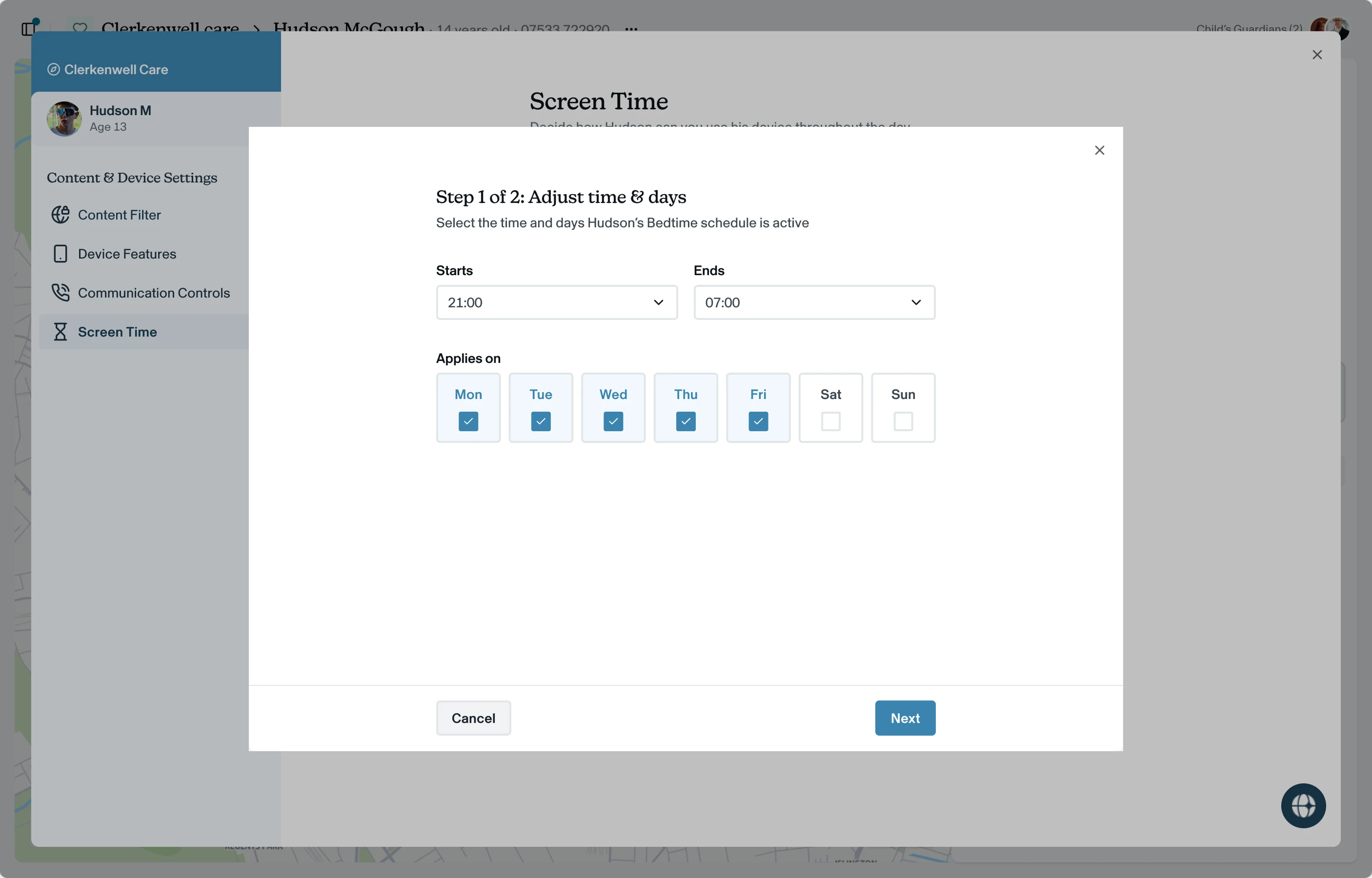
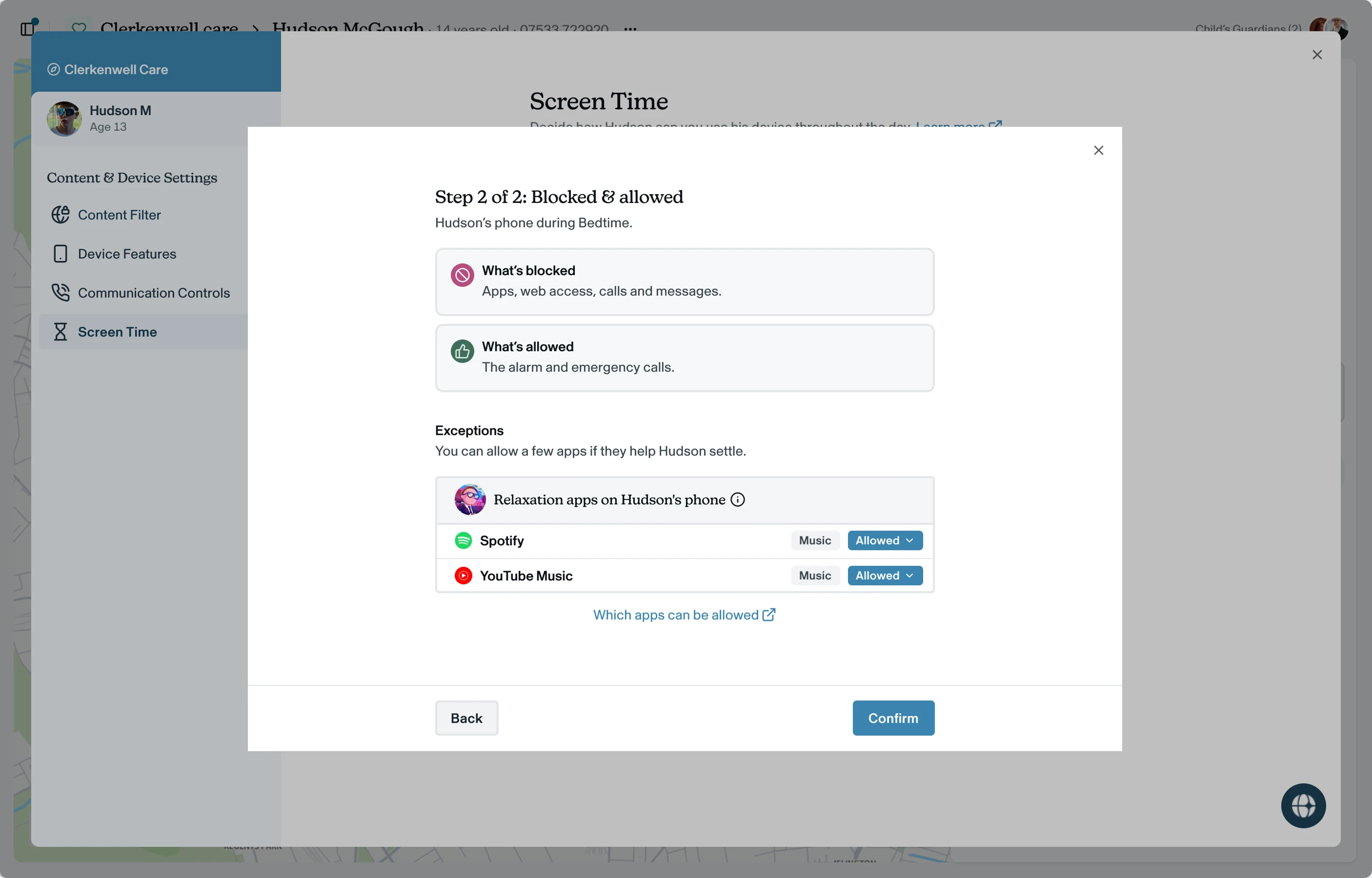
Click the settings icon on the Bedtime card. Editing is a two-step flow: Adjust time & days (set when it Starts and Ends, and choose the days under Applies on), then Blocked & allowed (review what's blocked and set your app exceptions). Click Confirm to close the editor. Your changes aren't live until you save them — see Save and sync your changes.
The child is always told
The child is told when you change a schedule. They get a notification, "Your bedtime has changed," showing the new days and times, so a change is never a surprise.
Add app exceptions
Exceptions are apps you allow to stay open during Bedtime, for example a music or sleep app to help a child settle. They're individual apps, not categories — set each one to Allowed or Blocked.
Apps you can allow
Voop currently offers these for Bedtime:
- Music and radio — Spotify, YouTube Music, Apple Music, Amazon Music, Deezer, SoundCloud, BBC Sounds, Global Player, TuneIn Radio
- Podcasts and audiobooks — Pocket Casts, Audible
- Sleep and mindfulness — Calm, Headspace, Insight Timer
Under Blocked & allowed, these appear as Relaxation apps on the child's phone. You'll only see the ones already installed, and up to five at a time — so your list is usually short. Each app shows a label, such as Music, so you can tell at a glance what it is.
If they install one of these later, it appears on its own, ready for you to allow.
It can help to agree with the child which app they'll use at bedtime.
If the list is empty
If the child doesn't have any of these apps, the list will be empty. That's normal — Bedtime still runs as usual and there's nothing you need to do. If you'd like them to have something to wind down to, installing one of the apps above will make it available to allow.
Switch a schedule on or off
Use the toggle on the Bedtime card. A schedule that's off is paused, not deleted: its days, times and exceptions are kept, ready to switch back on.
Because switching Bedtime off removes a protection, Voop asks you to confirm first ("Turn Bedtime off?"), explaining that the phone will stay reachable overnight until you switch it back on. Confirm, then save the change in the save bar, adding a reason as usual. Switching back on follows the same pattern.
Save and sync your changes
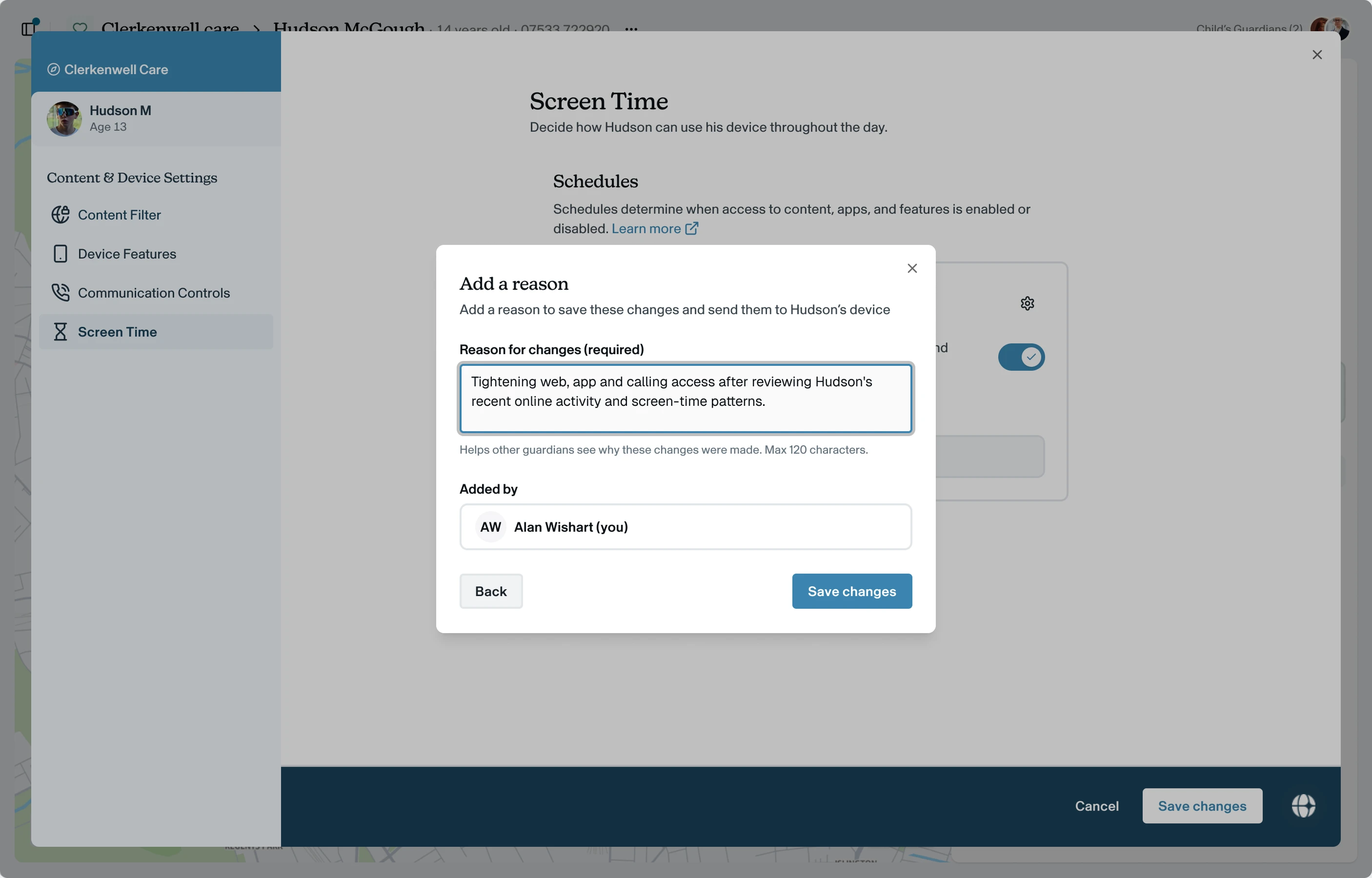
Changes aren't live until you save them. When you make a change, a save bar appears at the bottom of the screen. Voop then asks you to add a reason (required, up to 120 characters) and confirm who it was added by, before syncing the change to the child's phone and confirming when it's done.
Everything is logged
Every change is saved to Change History with the reason and who made it, so there's always a clear audit trail.
What the child sees
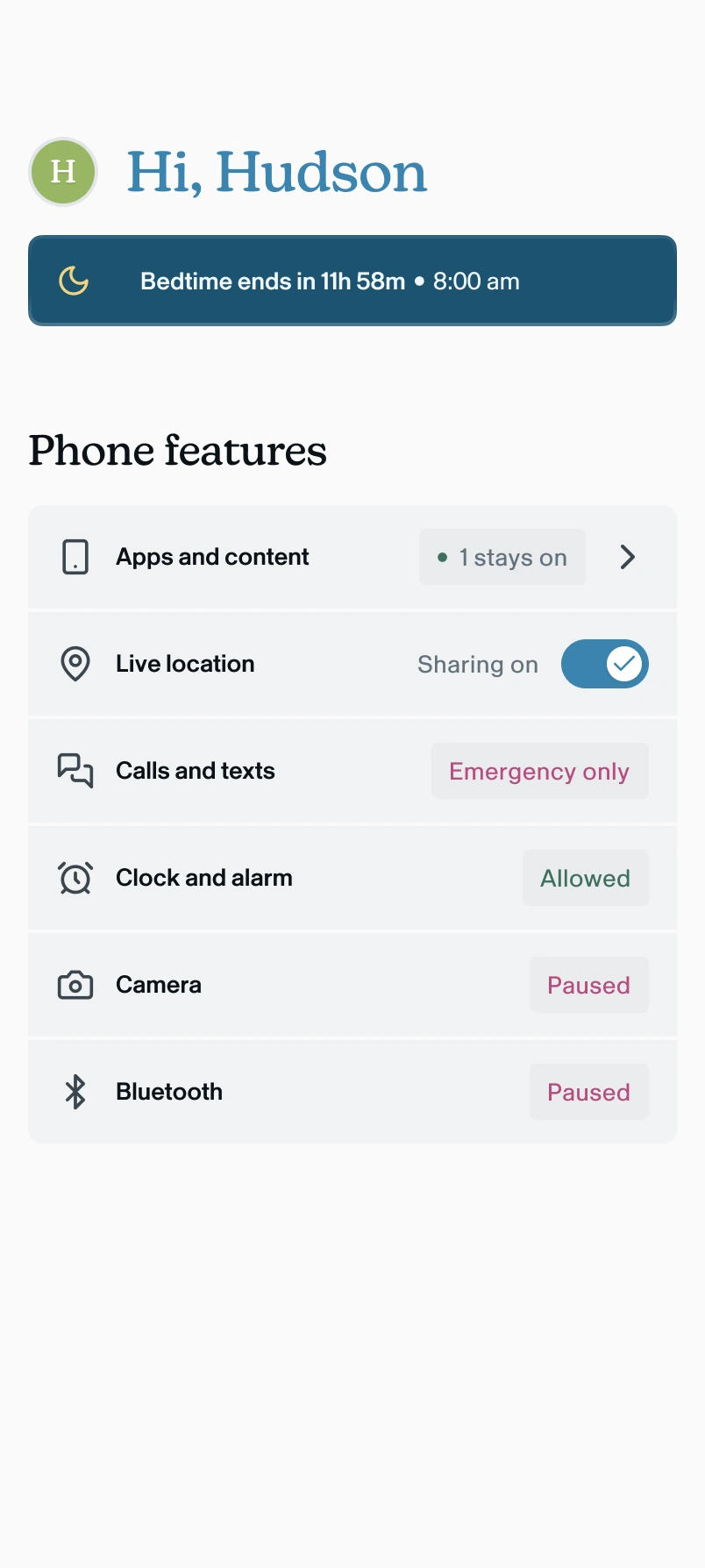
Bedtime is designed to be predictable, not a surprise. The child gets a heads-up before it starts, a clear message when it begins and ends, and a home screen that always shows what's paused and what still works.

- Before it starts: a 15-minute heads-up, "Good time to finish what you're doing." Everything still works until then.
- When it starts: "Your phone's paused until 8:00 am. Calls and alarms still work." The home screen shows what's paused (for example Camera and Bluetooth), what's limited (Calls and texts show Emergency only), and what stays on (the alarm, plus any exceptions, shown as "1 stays on").
- In the morning: "Morning – your phone's back to normal," with the time Bedtime starts again.
If the child opens something blocked: they see a message explaining the phone is paused, such as "Bedtime mode is on. Apps and games are paused until 8:00 am."