

Viewing locations
Admins, team owners and guardians' experience of Voop is a visual one - we place an emphasis on map-based visuals to help provide peace of mind and context, to help you safeguard.
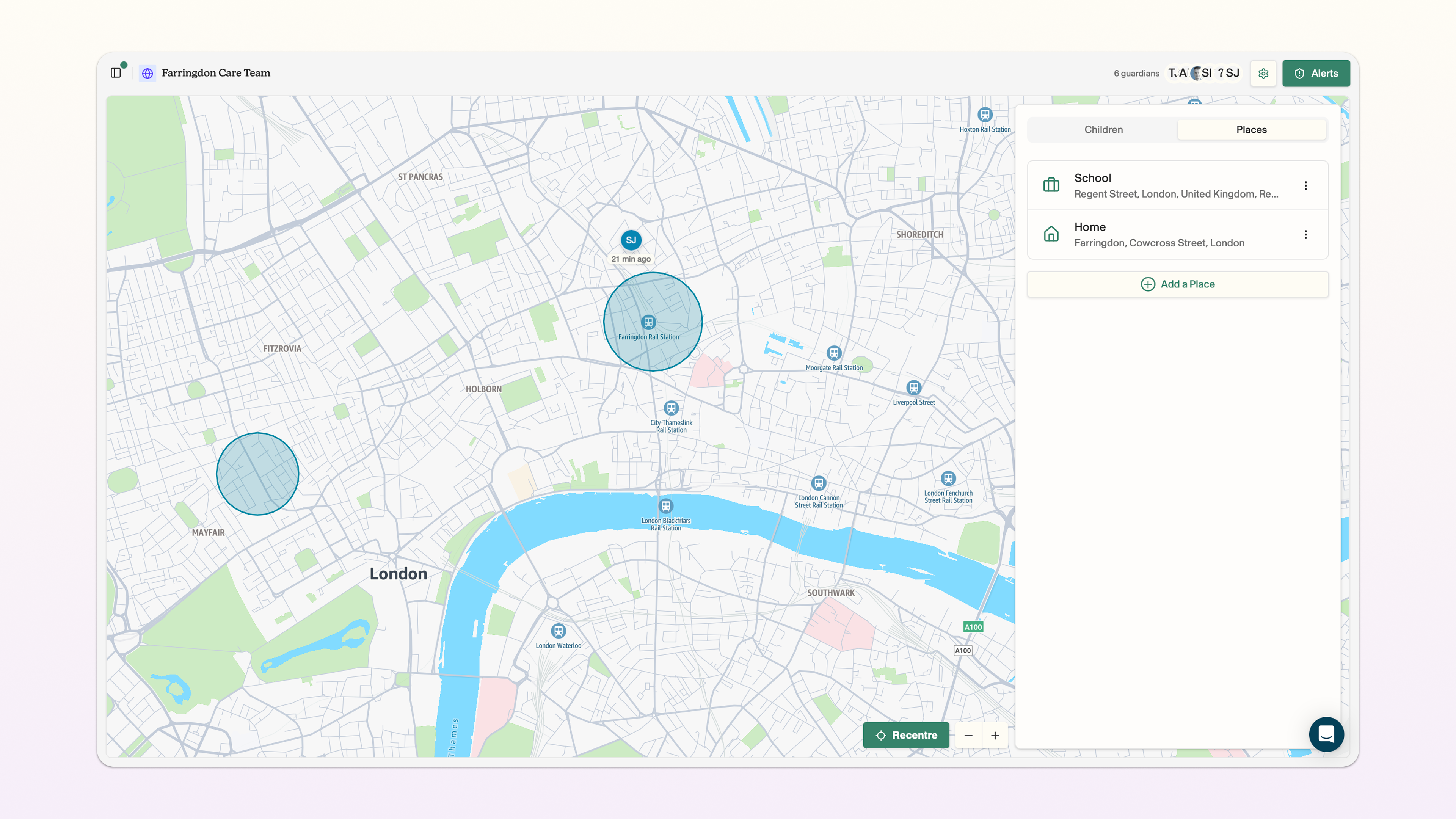
We try to provide the most accurate possible approximate location for the device. However, there are a number of factors that might impact this. As a result, the locator pin will state that a user is 'near' a location. Please always remember that this location is approximate!
Add a location
You can add key locations to receive alerts in your activity feed when a child enters and leaves that location. Key locations apply across the team, so you don't need to re-add locations for each child.
To navigate to locations from the dashboard view, click on the team for which you want to add a location to -> click on places in the side panel on the right -> add a place.
Enter the name of the location you want to add, and you can select the icon for this location. In location type, you can select whether you want this location to be marked as safe (e.g. a school) or unsafe (e.g. a known crime hotspot).
In the location field, enter the address or postcode for the location you want to add. The location will then appear in the map. You can use the zoom buttons to see that location in more or less context.
Use the radius bar to select the size of the radius around this location. The smallest radius is 50 metres, increasing up to 2000 metres.
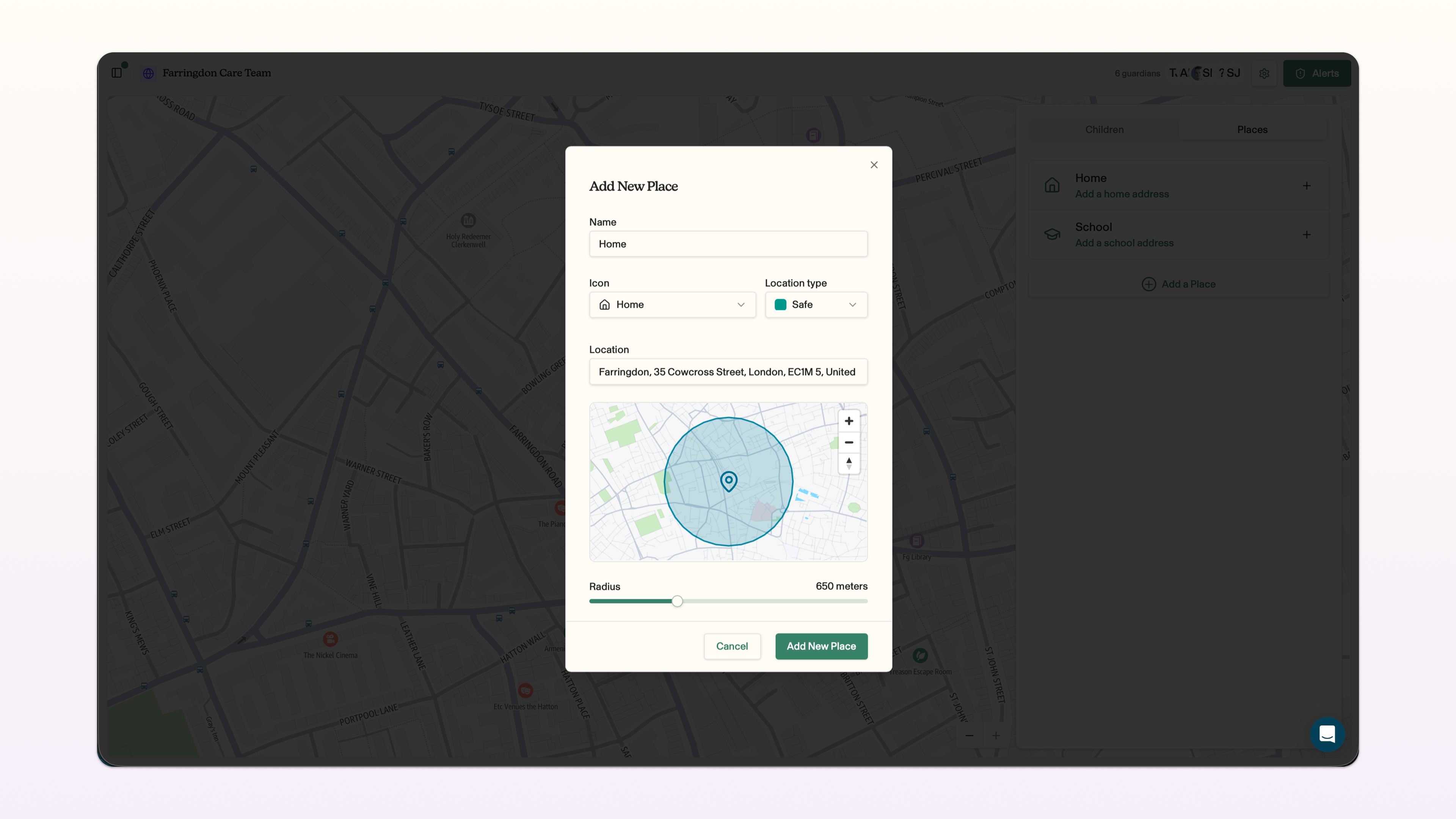
Provided the child has signal on their Voop device, and that they have consented through the Voop app to share their location with you, you will receive an alert when they enter and leave that location.
Edit a location
You can edit a location if you want to adjust the location, type of location or the radius.
Click the three dots next to the location -> edit place. You can edit the details for the location, in the same way that you add a location.
Remove a location
You can remove a location if you no longer need it.
Click the three dots next to the location -> remove place -> click remove place in the pop-up that appears.