

Apps and websites
You can block specific apps and websites, or you can block categories of apps and websites. From the dashboard, an admin, team owner or guardian can block apps and websites.
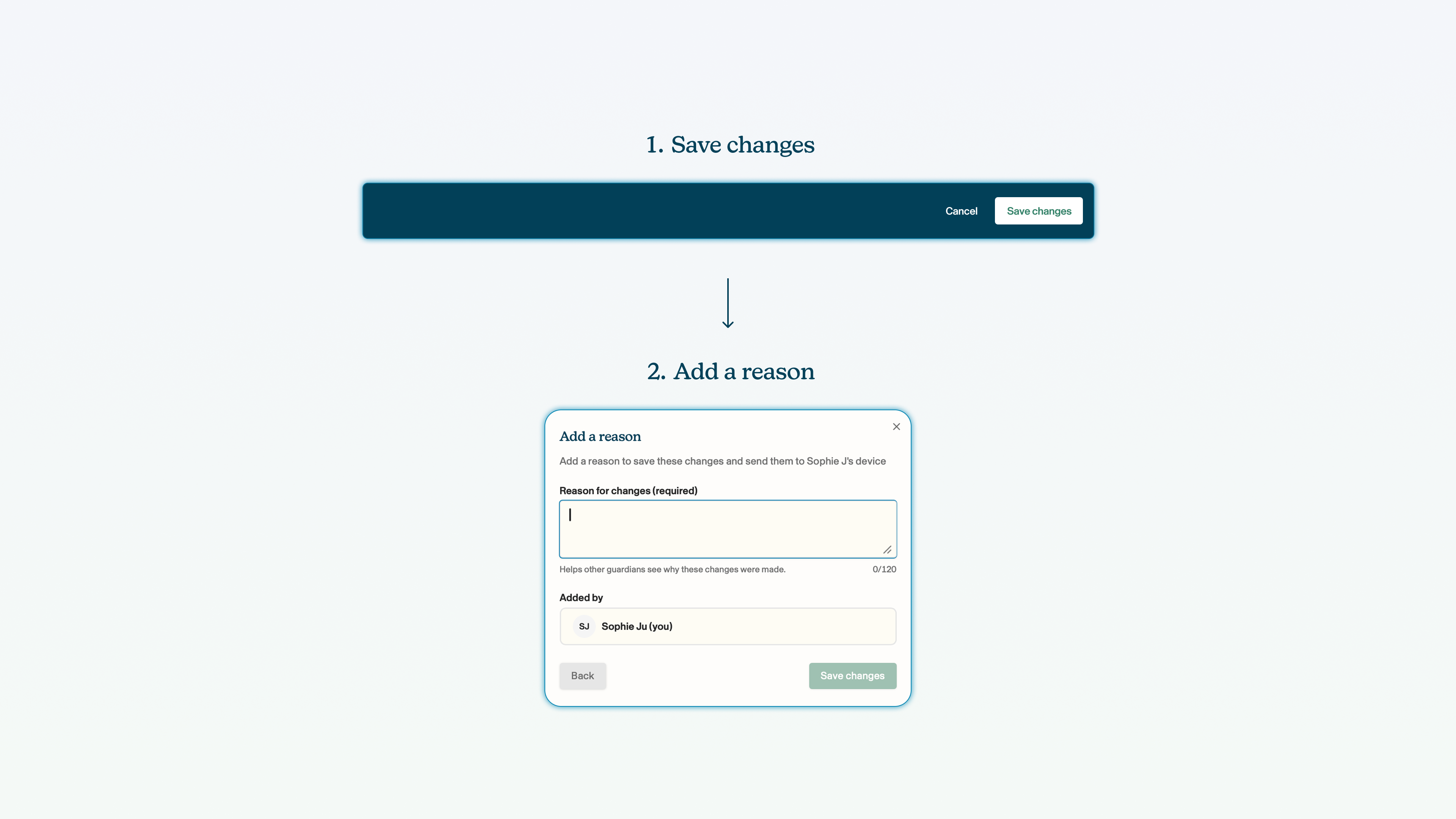
Remember: you must click save changes on the blue bar at the bottom of the screen whenever you make a change to the configuration of a child's smartphone.
To navigate to the web and app controls page from the dashboard view, click on the team for which you want to change the content filtering settings for -> click on the child within that team whose settings you want to change -> in the side bar on the right, click Voop content shield -> apps and web filter.
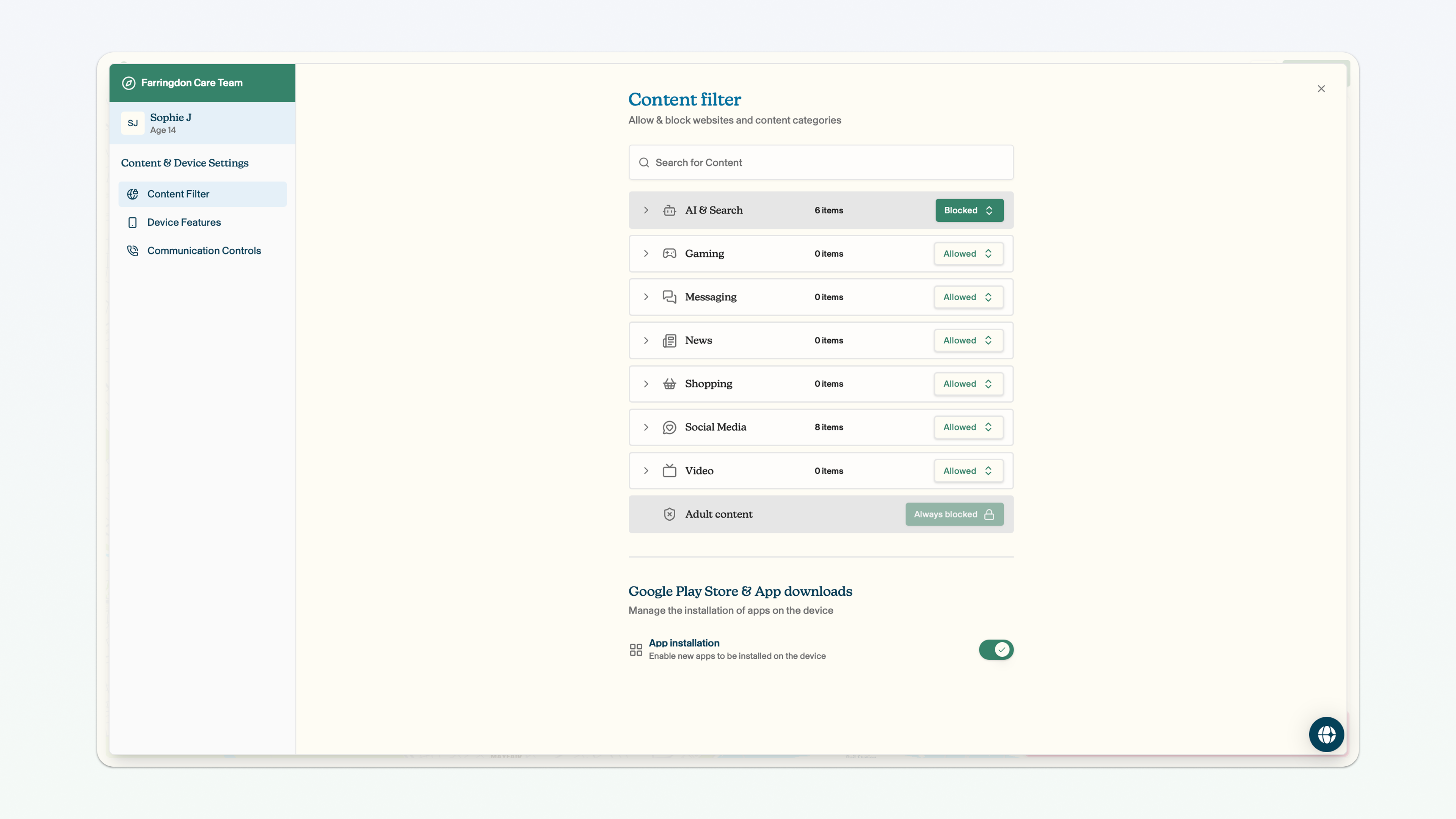
Block a specific app or website
You can block a specific app or website. This will prevent a child on the device from accessing this content: the website will not load and blocked apps will no longer be visible. A child will still be able to download a blocked app from the app store (provided app downloads have not been blocked), but they will not be able to see or use the app once downloaded.
A child will still be able to download a blocked app from the Google Play Store. However, the icon for the blocked app will not appear once it is downloaded and the app will not be accessible.
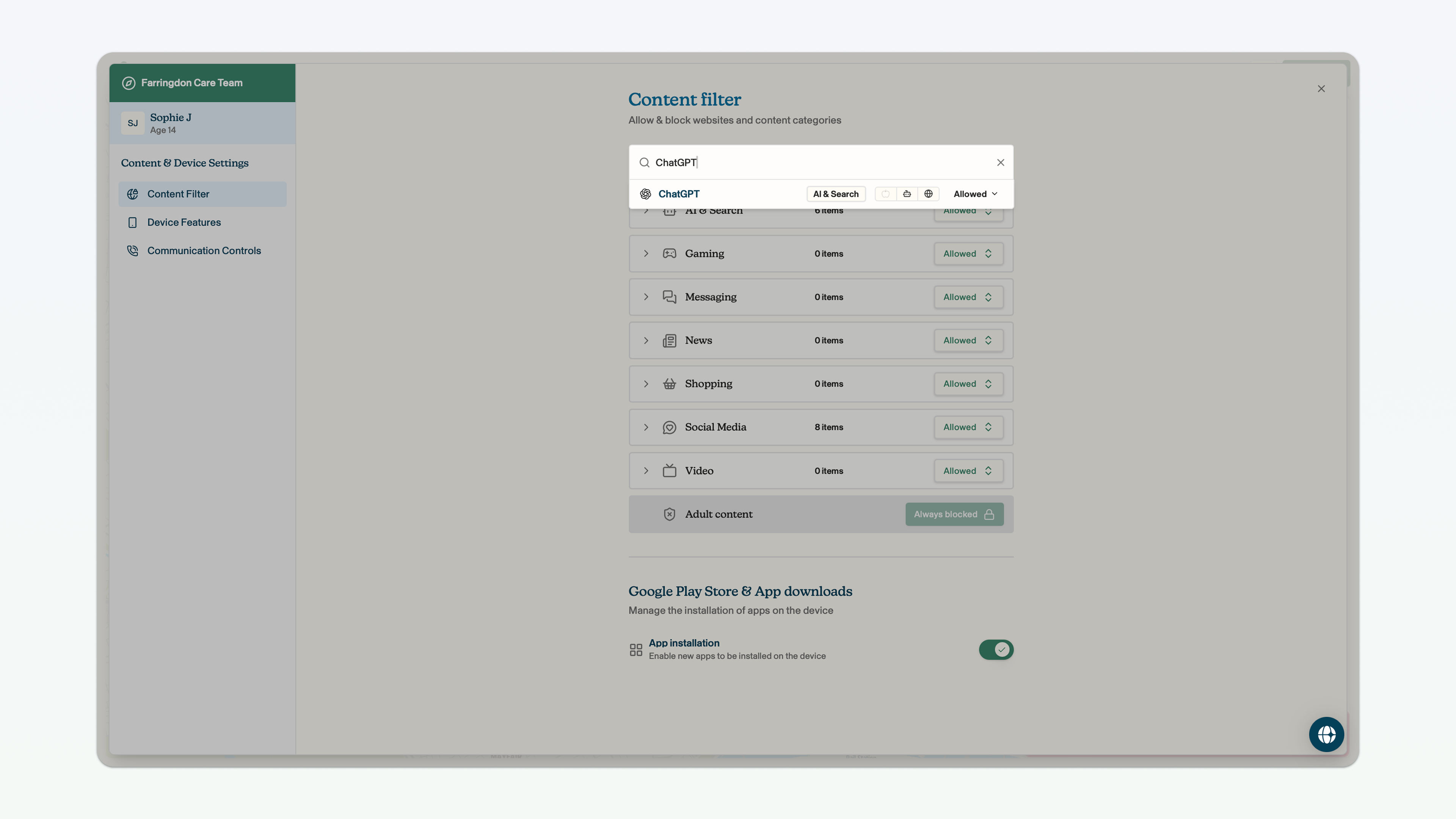
Click search for content → enter the name of the app or website → click allowed to open up the menu → click blocked.
Block a category of apps and websites
You can block a category of apps and websites. This means that all of the apps and websites contained in that category will be blocked on the child's device.
A child will still be able to download a blocked app from the Google Play Store. However, the icon for the blocked app will not appear once it is downloaded and the app will not be accessible.
Click allowed next to the app category you want to block → click blocked.
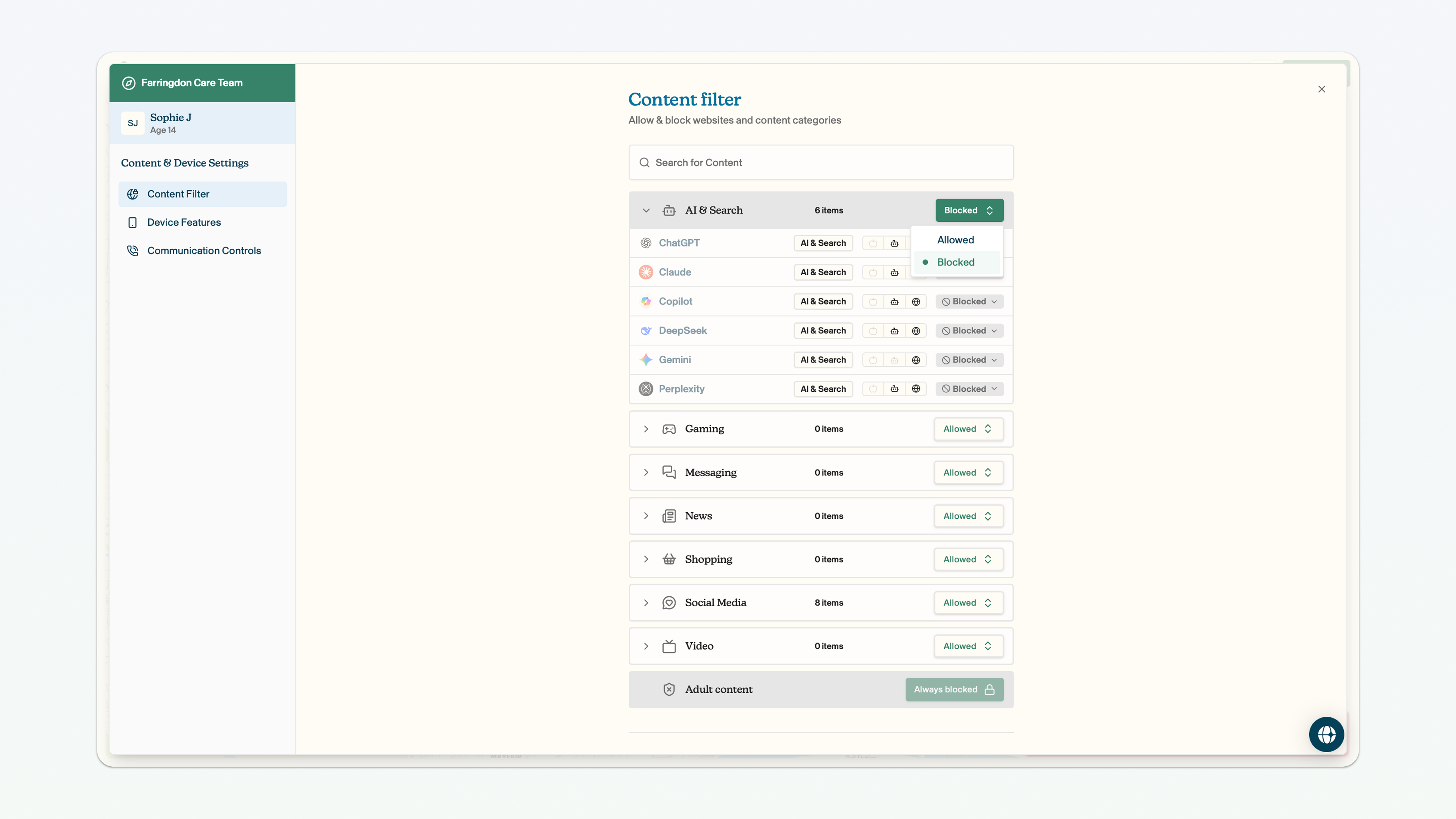
You can see the number of apps and websites that are contained within each category by looking at the number of items. If you click the arrow next to the name of the content category, you can see all of the individual apps and websites that are contained within each category.
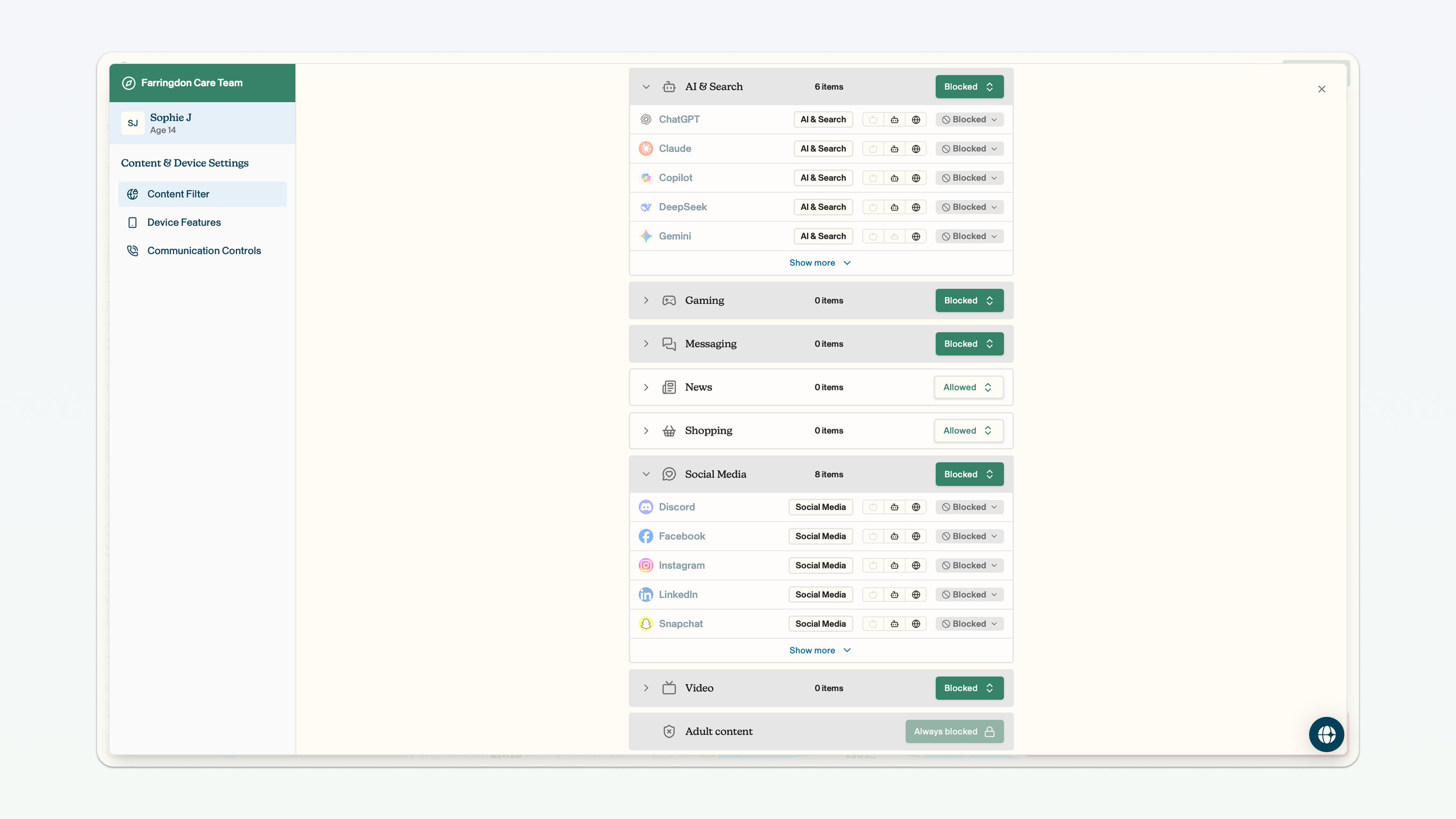
The apple icon means that the item relates to an Apple iOS app; the robot icon means that the item relates to an Android app; the globe icon means that the item relates to a website.
We offer a number of app and website categories, including messaging, gaming, social media and adult content. Adult content is blocked by default and this setting cannot be changed.
Behind the scenes, Voop operates a content filtering engine. This means that we assign apps and websites to categories. For example, ChatGPT belongs in the AI category. We also have visibility of all of the apps that children on the Voop network download and use. We review these apps frequently, and assign them to categories.
Voop's content categories are not exhaustive of apps and websites that might sit within that category. If you find apps and websites that are not contained within the category, please reach out to us by clicking the globe in the bottom right corner of your screen. We can then take a look at adding the app to our system, so you can easily block it in the future.