

Teams
Create a team
You can create a team, from where you can invite guardians to join, and add children and their devices so they can be managed within that team.
To navigate to team settings from the dashboard view, click on your name in the bottom left corner -> account settings -> teams.
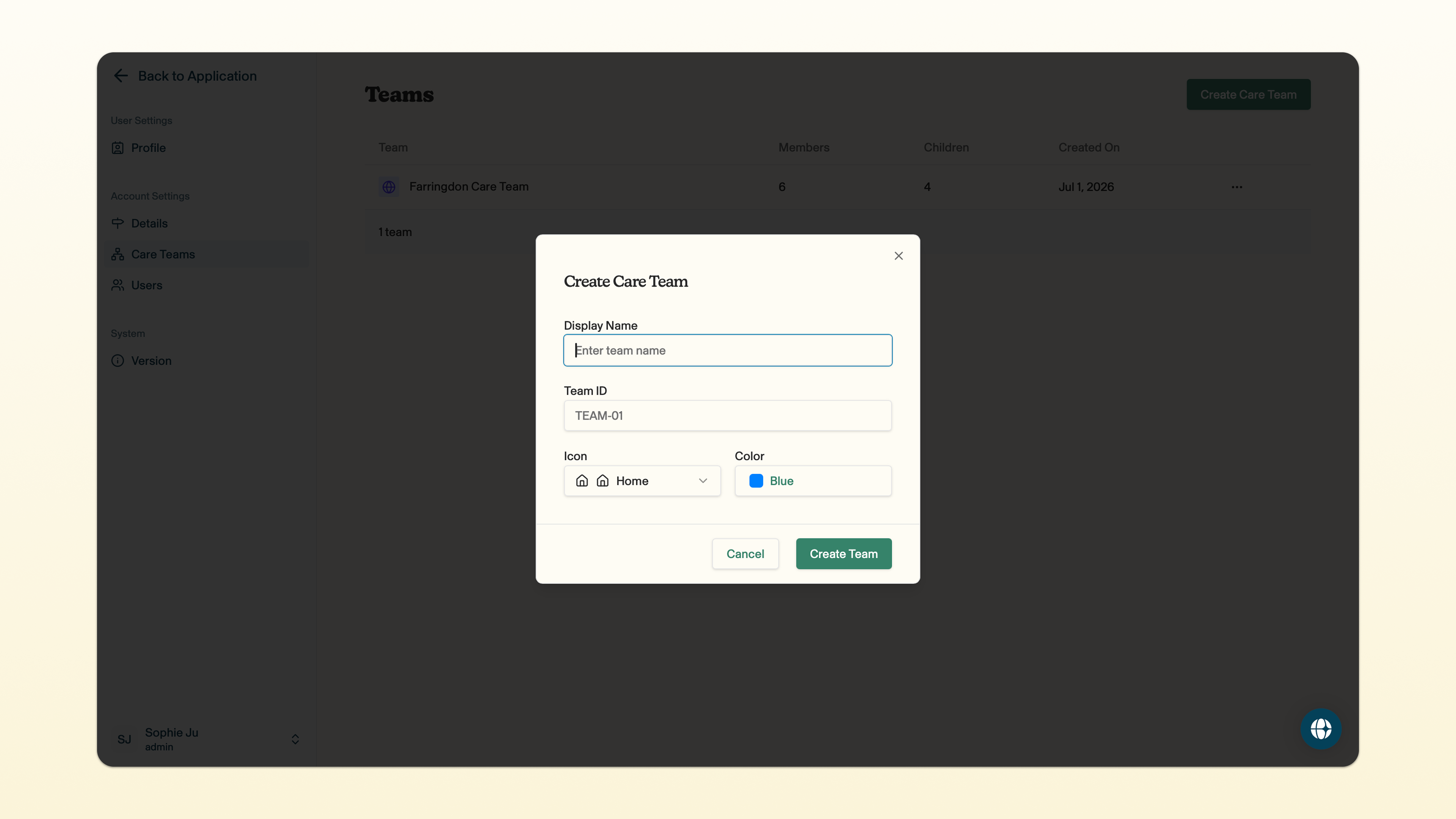
To create a team, click on create team -> add the display name for your team (e.g. 'South Manchester') -> select an icon by clicking the icon field -> choose a colour for this icon by clicking the colour field.
The Team ID field will automatically populate - you don't need to do anything here.
Click create team to save your changes!
View a team
You can view a team to see each of the children in the team in a single place. When you're in the dashboard view, you can see each of the teams that you have permission to access, and the number of children within each team.
If you click the arrow next to the team, you can see key information relating to each child in that team. This includes an image of the child (if they've uploaded one to their user profile), the device's battery status and location (provided they have opted in to sharing their location).
You can also see all of the teams you have permission to access by clicking the sidebar button in the top left hand corner. Your teams and the children within each team will be listed on the left hand side.
Edit a team
You can edit a team to change the team's name, icon, the colour of the icon and the permissions for team leaders and guardians to have access to that team.
To navigate to edit the team settings from the dashboard view, click on your name in the bottom left corner -> account settings -> teams.
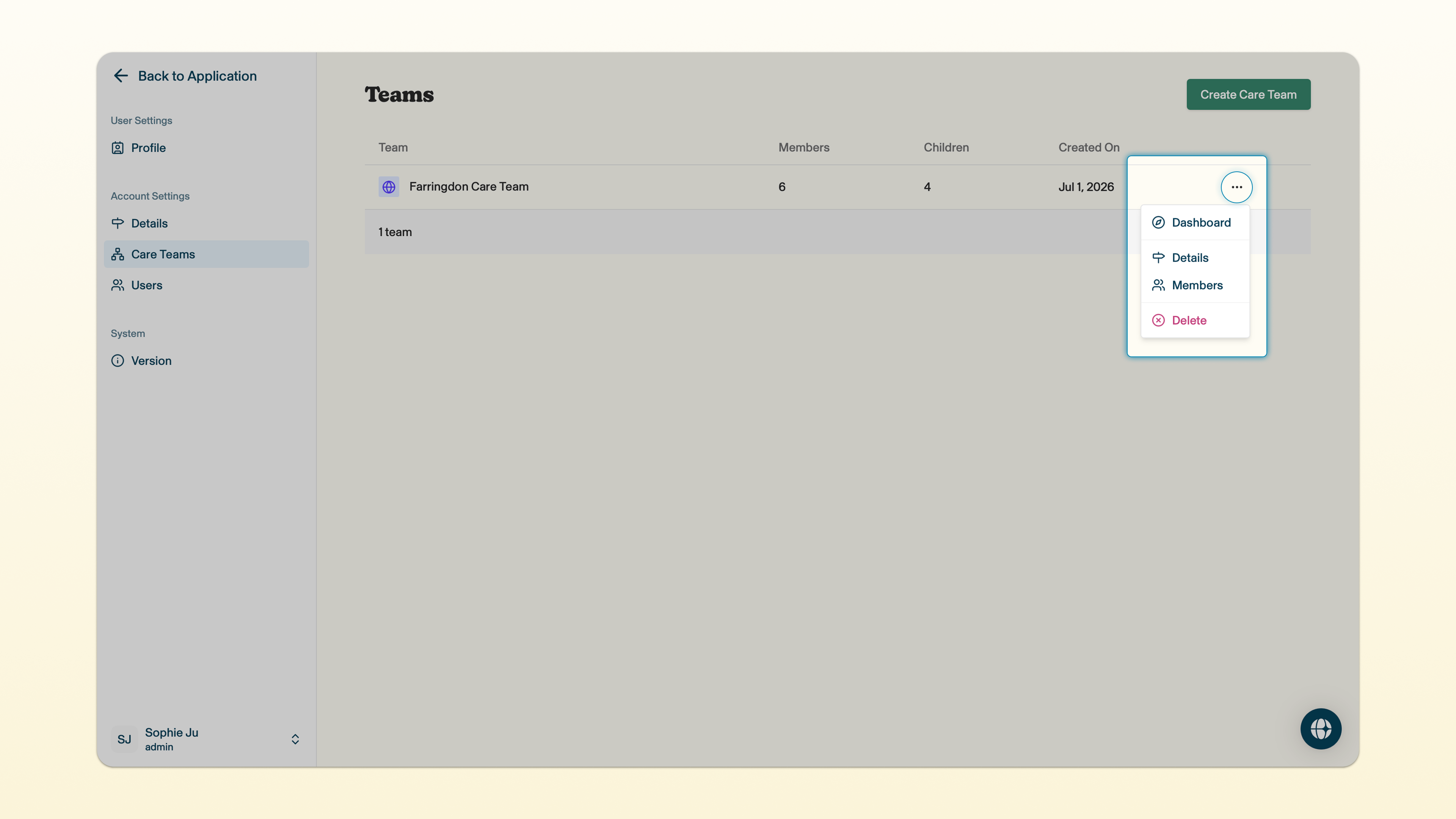
Find the team whose settings you want to edit, and click the three dots next to that team -> details.
No need to worry about the Team ID, this will automatically populate.
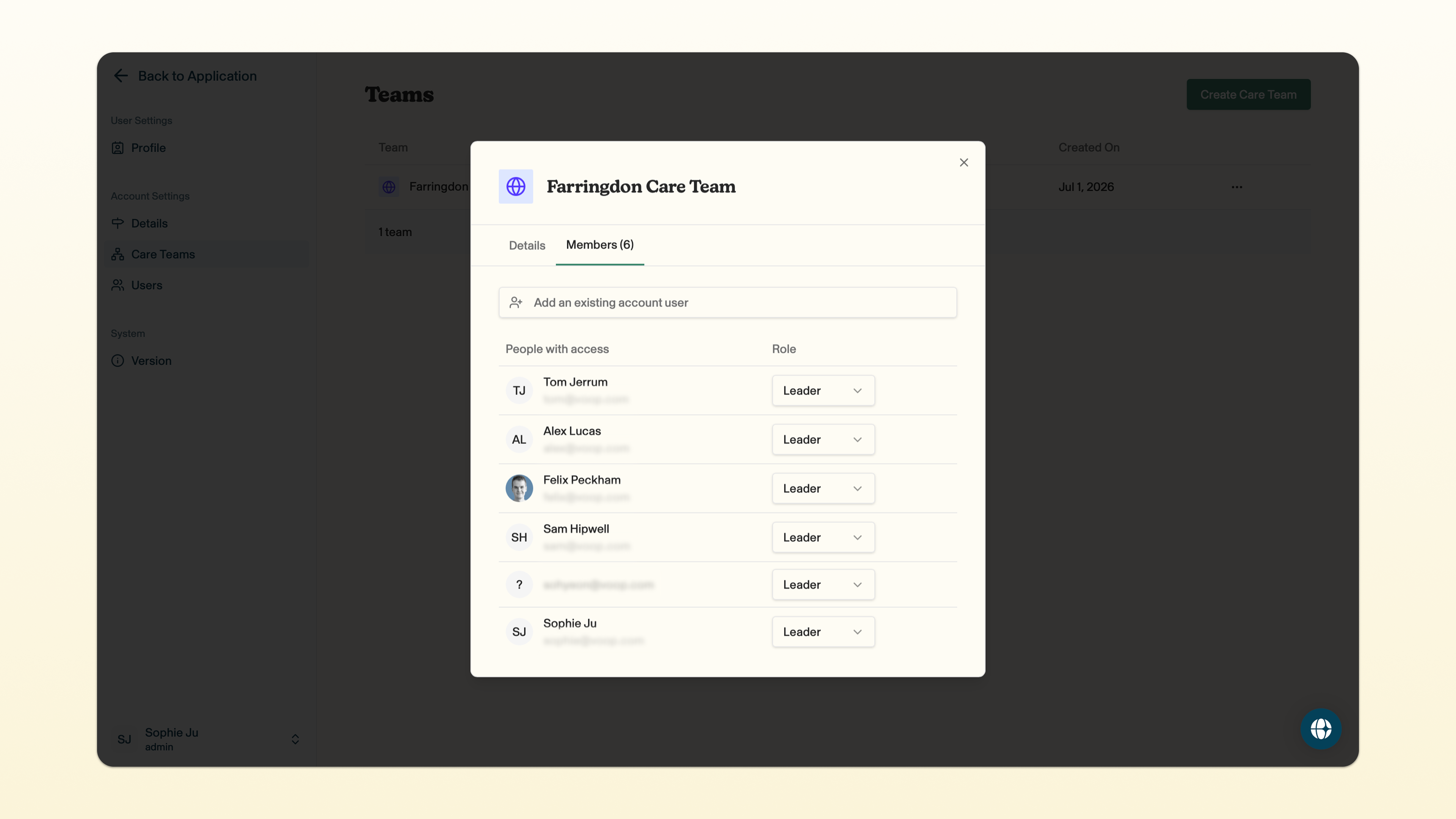
Click members to add new users to your team and to change their role within the team --> add an existing account user to add a user to your team (the guardian will already need to have a profile within your account to be added to the team.
You can invite new users to join your team through the invite a user process.
Click on the role of an existing user to change their permissions.
Click save changes so you don't lose your changes!