Alerts
An alert features on the dashboard, to draw attention to a user's activity. From the dashboard, an admin, team owner or guardian can view alerts at the team level or at the child level.
View alerts
You can view the alerts that Voop is surfacing to you, which relate to a child's use of their device.
There are two views where you can see alerts.
The first view is at the team level, allowing you to see a list of all of the alerts that have been surfaced in relation to a team.
To navigate to the team-level alerts view from the dashboard view, click on alerts in the sidebar on the left hand side. In this view, you can filter alerts to your preference. If you click on an alert, you'll receive more information about that alert, such as the exact time it was surfaced.
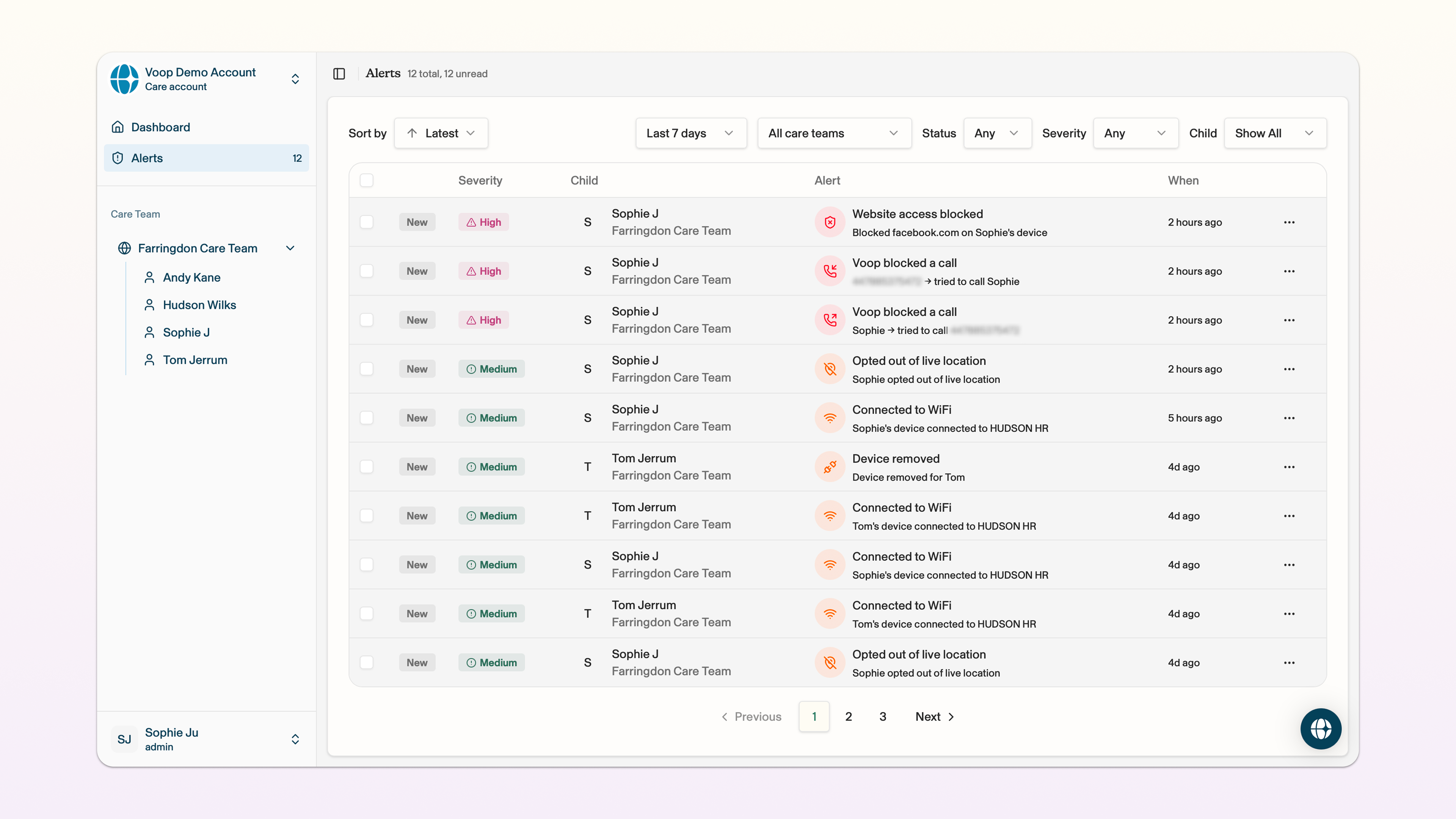
There are a number of filters you can apply to organise these alerts. Select the appropriate field at the top of the page and click the alert filter you want to apply. You can select the box on the left hand side of the alert → click mark as read in the bottom right hand corner. The alert will now be marked as read.
The second view is at the child level, allowing you to see a list of all of the alerts that have been surfaced in relation to a child.
To navigate to the child-level alerts view from the dashboard level, you can click the name of the child whose alerts you want to view. The alerts will appear in the side bar on the right hand side.
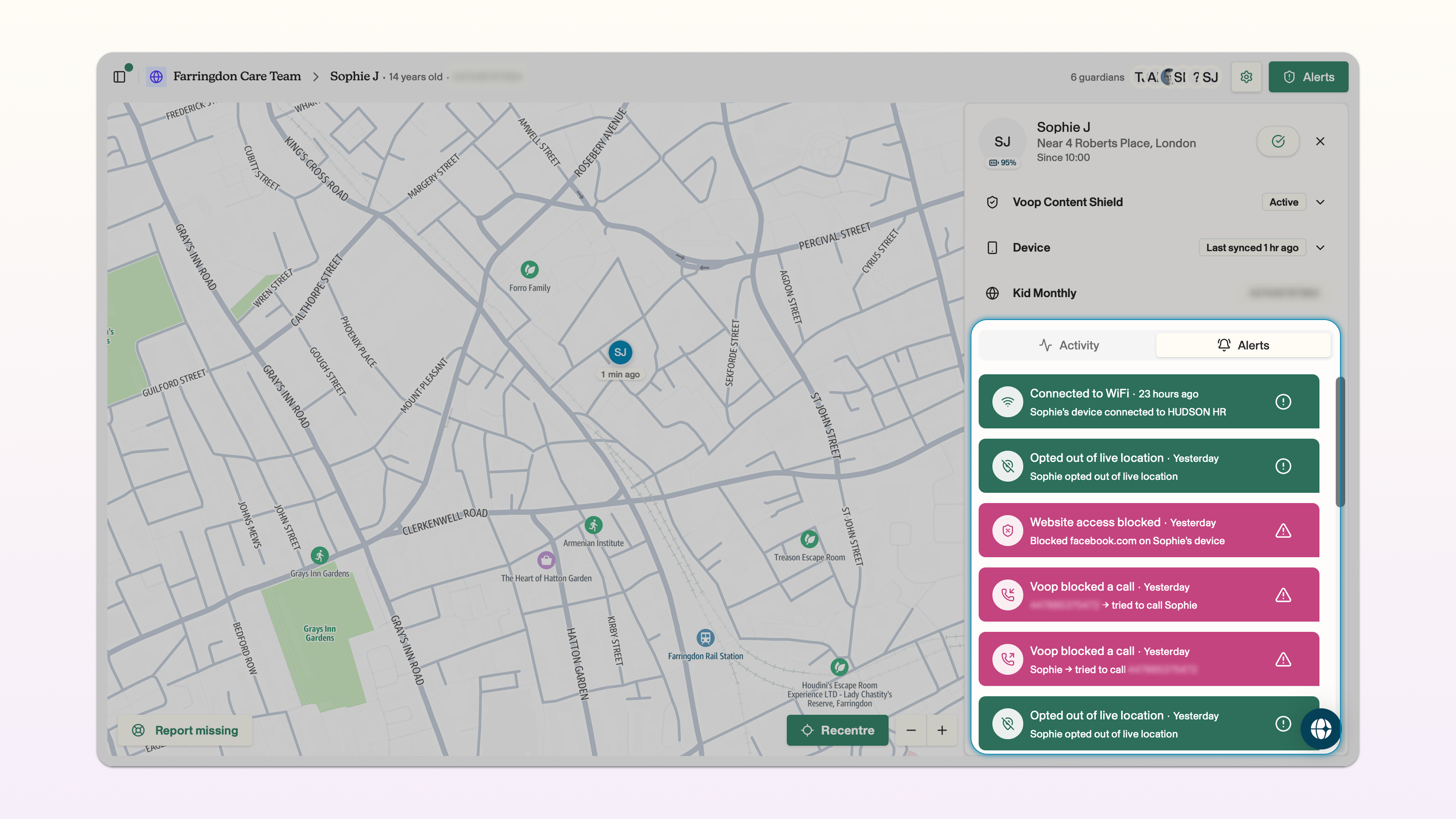
Please note that in the child-level view you can only see alerts that have been surfaced in the past 7 days; to view all of the alerts relating to a child, navigate to the team-level view!
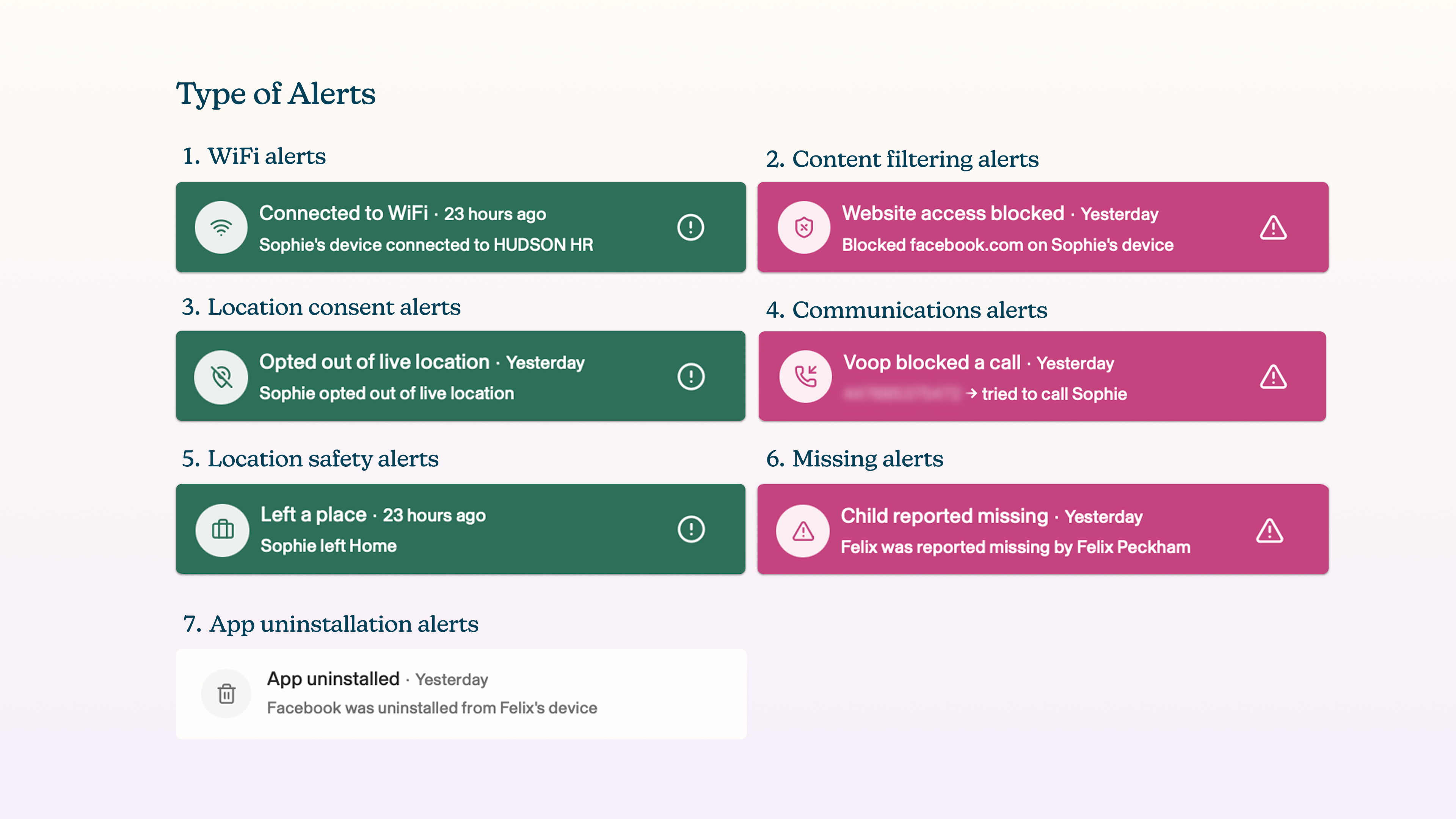
Types of alerts
Voop provides a range of alerts to provide you with contextual understanding of how a child is using their smartphone.