

Users
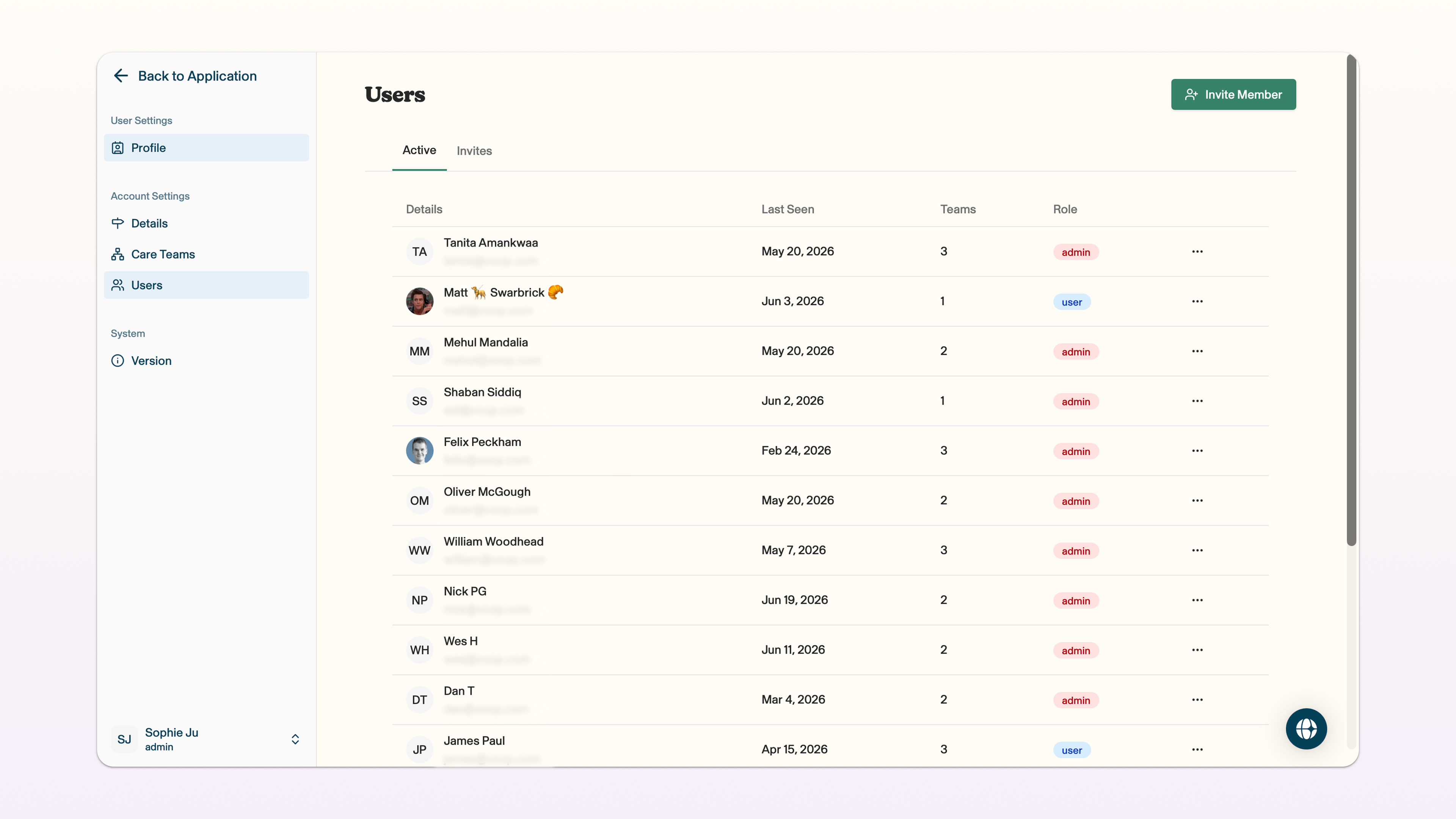
A user is somebody who uses the Voop dashboard or the mobile network through their device. A user can be an account owner, team owner, guardian or child. From the dashboard, you can invite new users, set their role, accept invites and manage your own profile.
To navigate to user settings from the dashboard view, click on your name in the bottom left corner -> account settings -> users.
Invite a user
You can invite someone to join your Voop account.
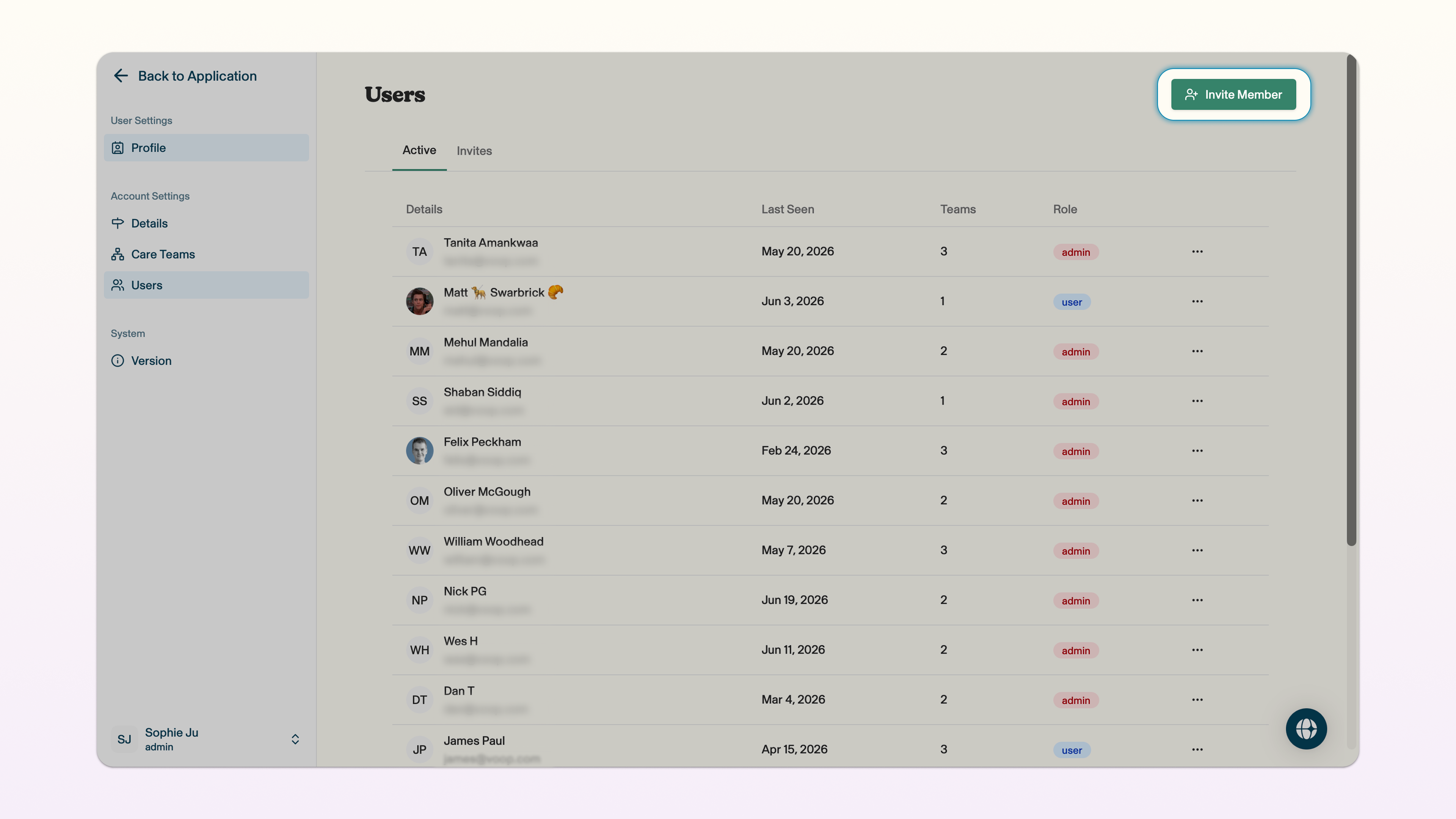
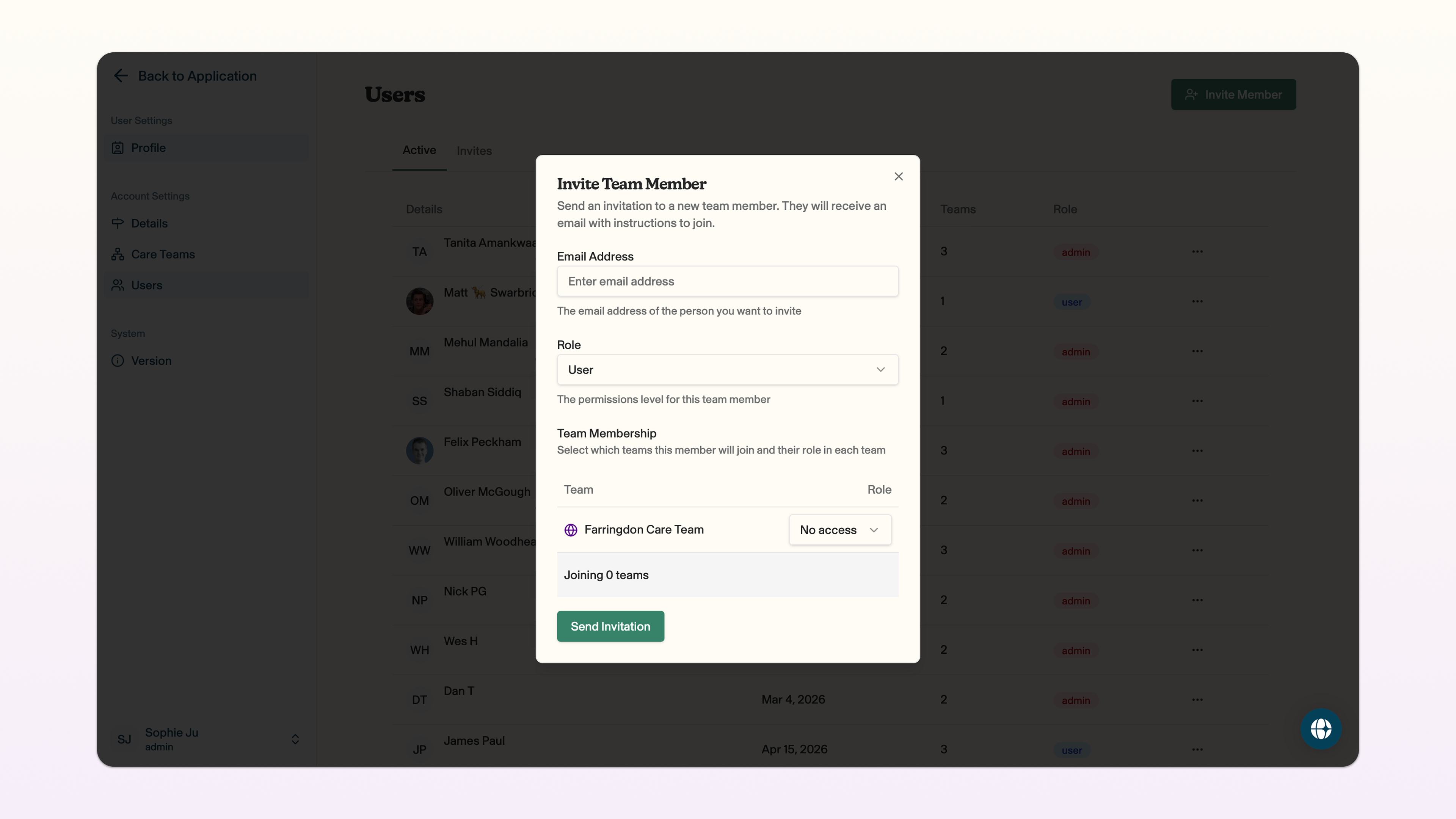
Click invite member -> enter the email address for the new user -> select the role for the new user.
You'll see the teams within your account listed here. Click on role in the team you want the new user to have access to and set their role.
Click send invitation to send an email to the new user, with instructions on what they need to do to set up their account! For the new user, it's super straightforward as you can see below.
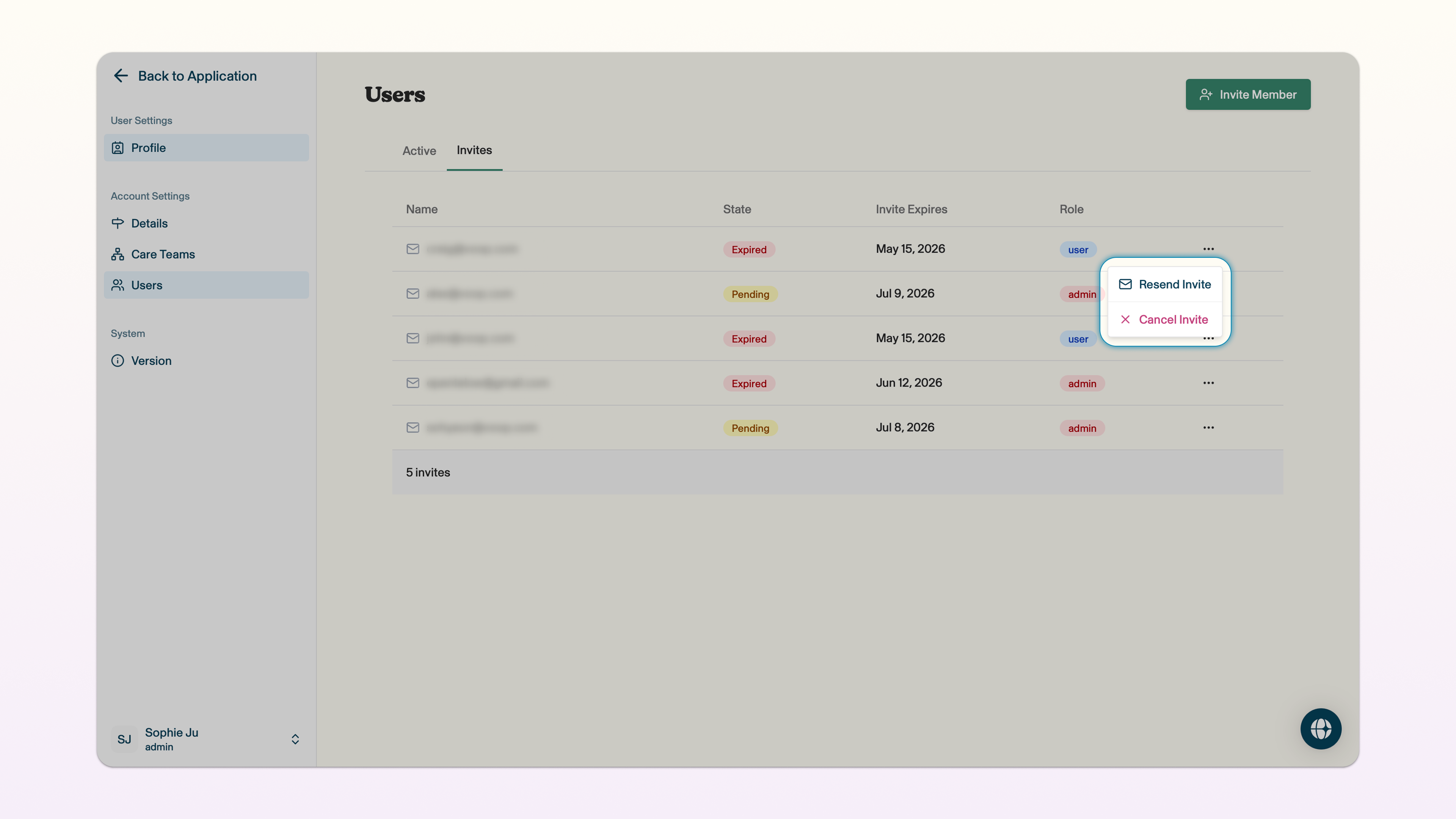
To see the outstanding invites that you have sent (which have not been acted upon), click on invites.
Resend a user invite
You can resend an invite to a user. Invites to new users will automatically expire after 7 days.
To resend an invite from the users page in account settings, click invites -> click the three dots next to the user whose invite you want to resend -> resend invite.
This will resend the invite, which will expire after 7 days.
Accept a user invite
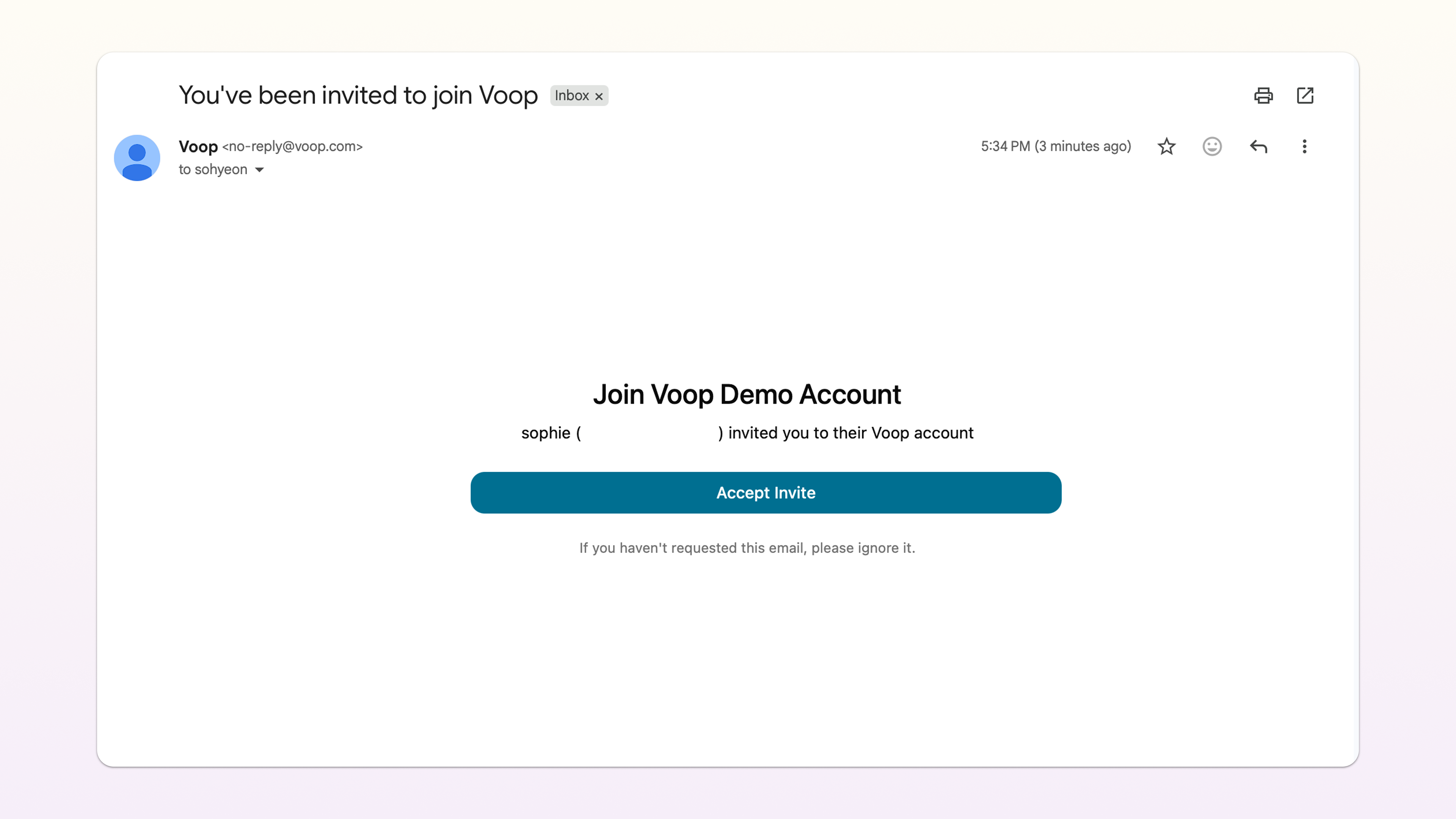
You can accept a user invite, if you have been sent an invite by an existing user. New users will receive an email from Voop as soon as the invite from the existing user is sent.
To accept the invite, open your email inbox and click accept invite on the email from Voop -> enter the email address that the invite was sent to -> continue.
Voop will send you a 6 digit security code to your email inbox -> enter the 6 digit code -> accept invitation.
Welcome to Voop 🙂
You can now create a user profile, as explained below.
Create a user profile
You can create a user profile, after you've accepted your invite to join Voop.
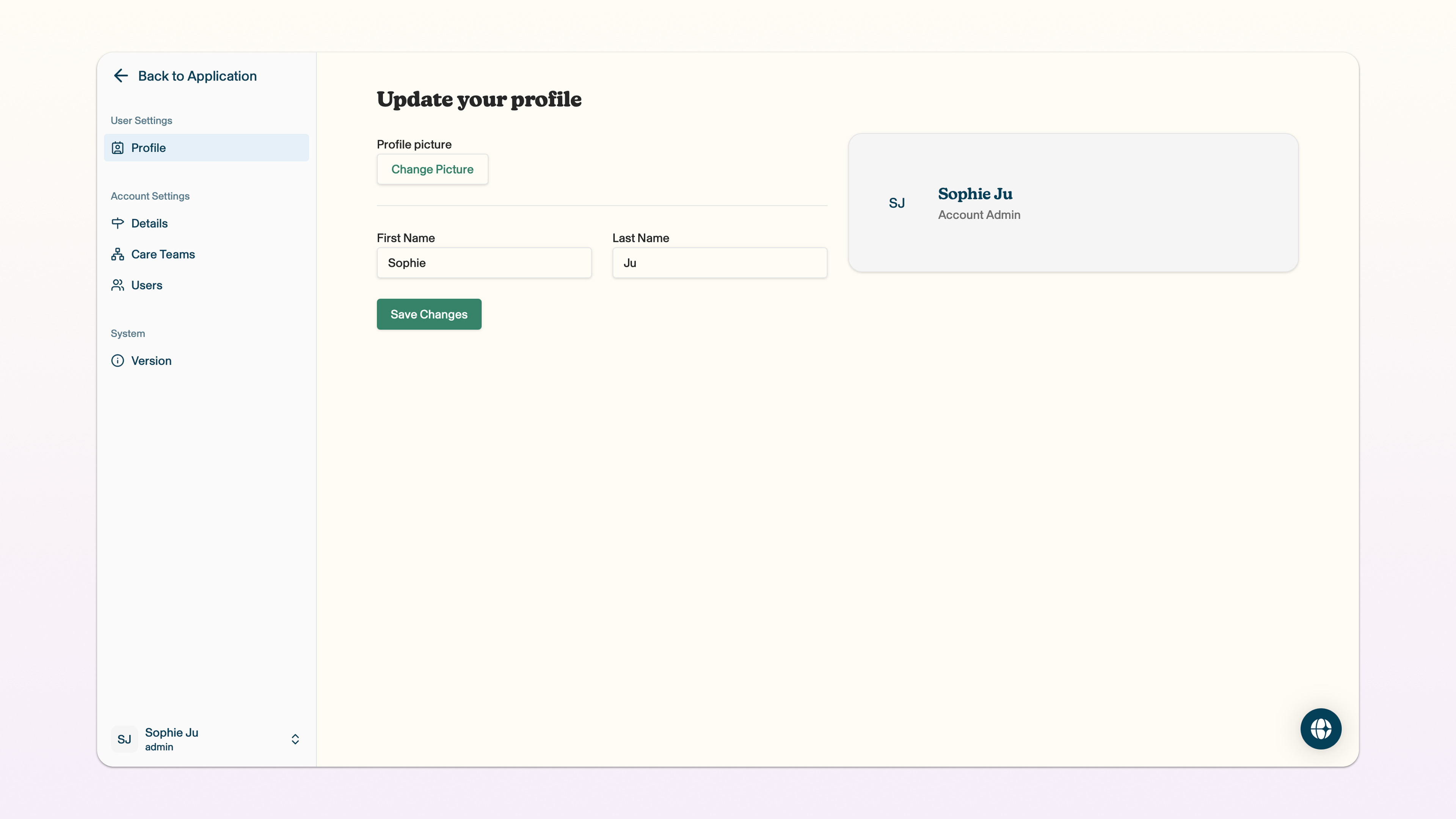
The update your profile page will pop-up as soon as you enter the dashboard -> add a profile picture by clicking change picture and -> enter your first name and last name.
Click save changes to save your changes!
Edit a user profile
You can edit your user profile, to change your profile picture and your name.
To navigate to your profile from the dashboard view, click on your name in the bottom left corner -> account settings -> profile.
Click change picture to choose a new image, or remove picture to remove your profile picture.
Click on first name or last name to edit.
Click save changes to save your changes!