

Social media and messaging apps
We recognise that admins, team leaders and guardians may want to place restrictions on access to social media and messaging apps.
There are limitations to what Voop can do. We cannot apply restrictions to calling and messaging through third party social media and messaging apps (like WhatsApp and Snapchat). The controls through Voop only apply to the smartphone's native calling and text messaging app.
Whilst we cannot control what happens within third party social media and messaging apps, you can use Voop to block access to these apps entirely.
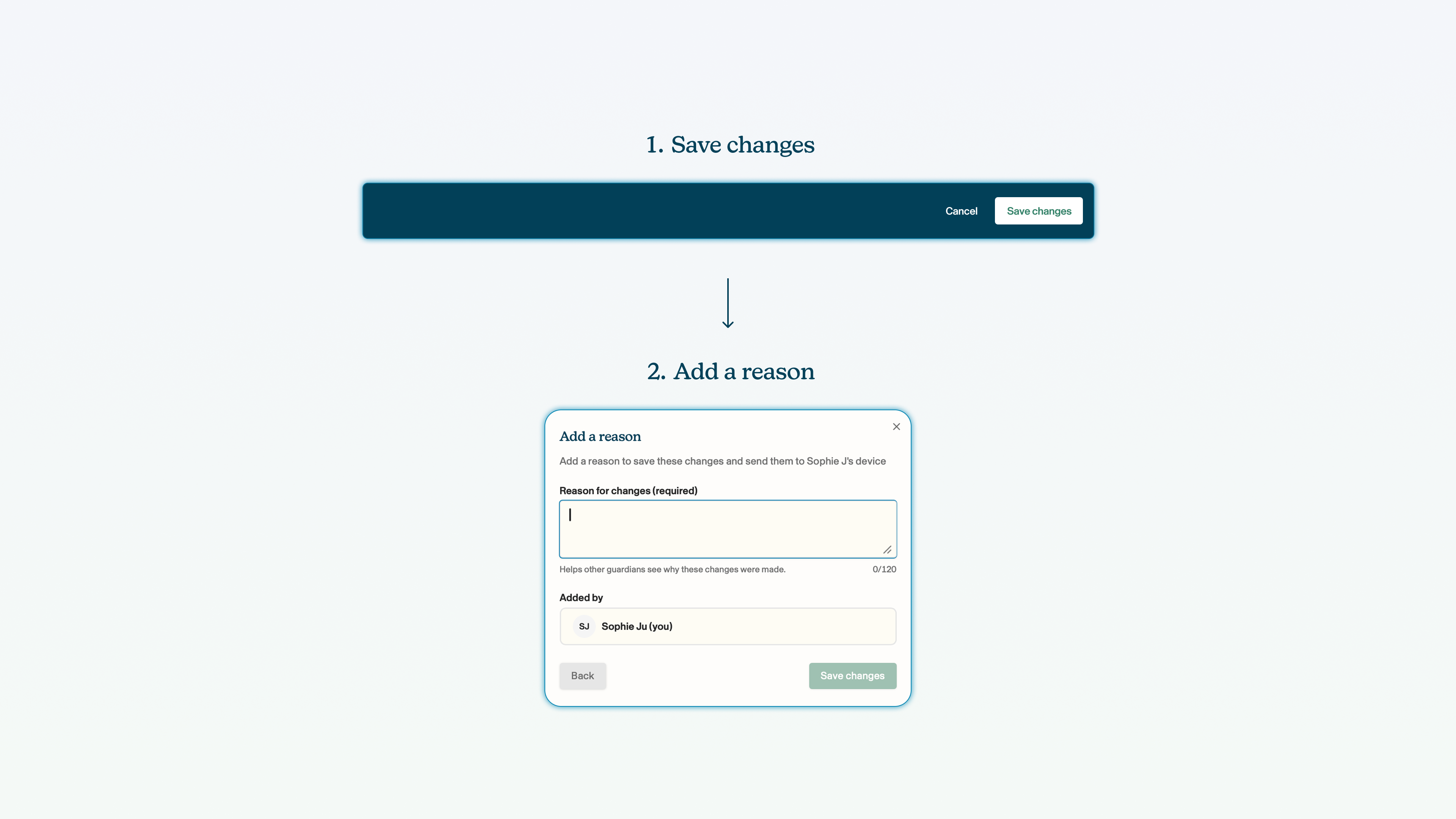
Remember: you must click save changes on the blue bar at the bottom of the screen whenever you make a change to the configuration of a child's smartphone.
Manage social media and messaging apps
You can block access to the social media and messaging app categories.
Click the toggle next to the social media or messaging field. Blocked will block the child's access to all of the apps and websites that we have categorised within that category; allowed will enable access.
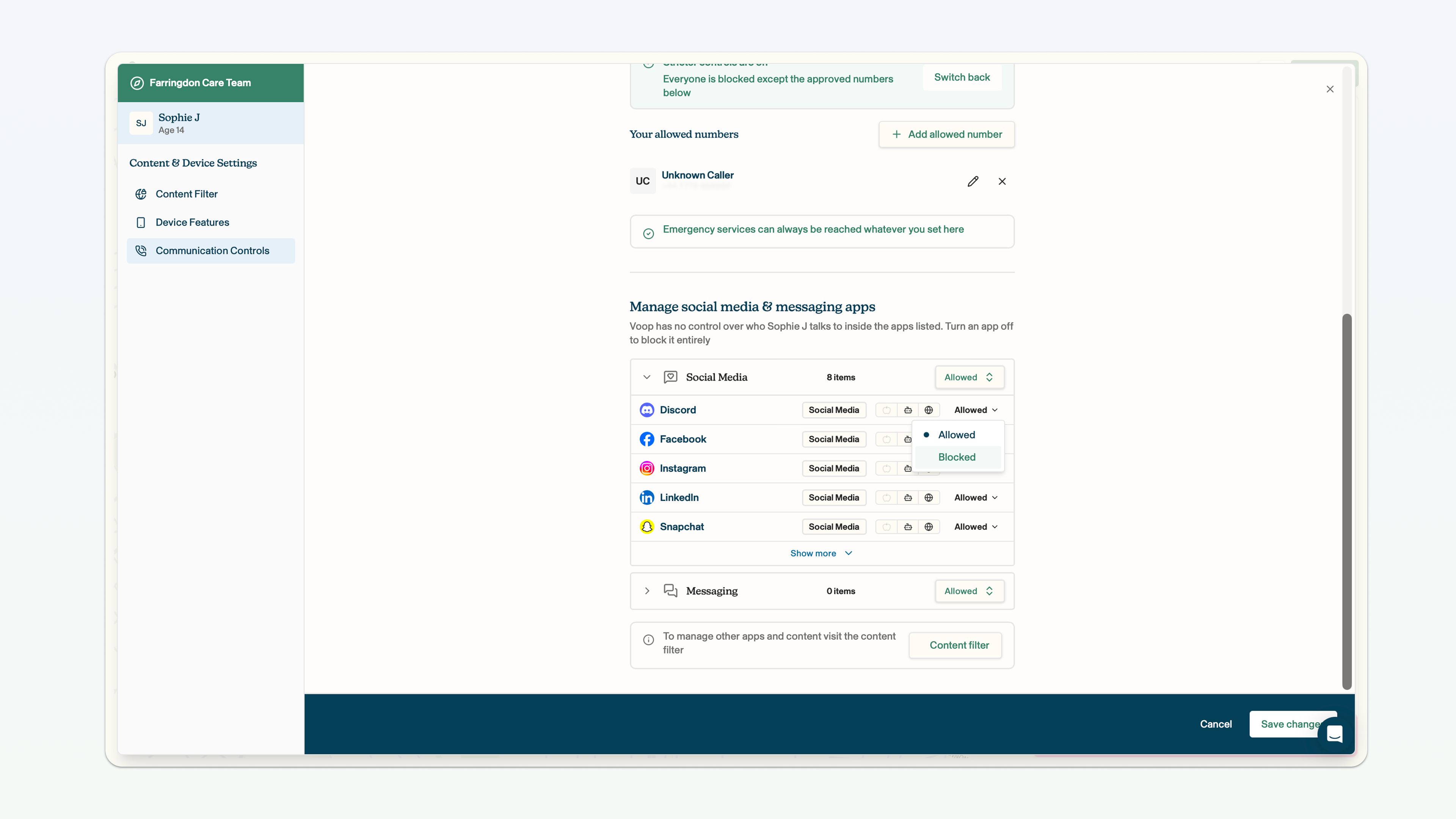
If you have allowed access to the category, you can block individual apps and websites within the category. This can be completed through the content filtering page.
Behind the scenes, Voop assigns apps and websites to the relevant categories (for example, Facebook is in 'social media' and BBC News is in 'news'). Our app categorisation process is not exhaustive - we are always finding and categorising new entities!
A child will still be able to download a blocked app from the Google Play Store. However, the icon for the blocked app will not appear once it is downloaded and the app will not be accessible.
The number at the top of each category shows you how many apps and websites are contained within that category.
If you want to block categories, or specific apps and websites, beyond social media and messaging, click content filter at the bottom of the page. You can find more information on how to do this here.